
Automation
Automation is for repeatable work whose inputs, output, and permission boundary can be written down in advance: daily digests, periodic checks, or a one-time reminder. Every trigger creates a fresh General Work session; it does not reuse the temporary context of an older conversation. For one-off to-dos, work that should wait for a person, or continuing an existing thread, use the task board.
Open the automation list
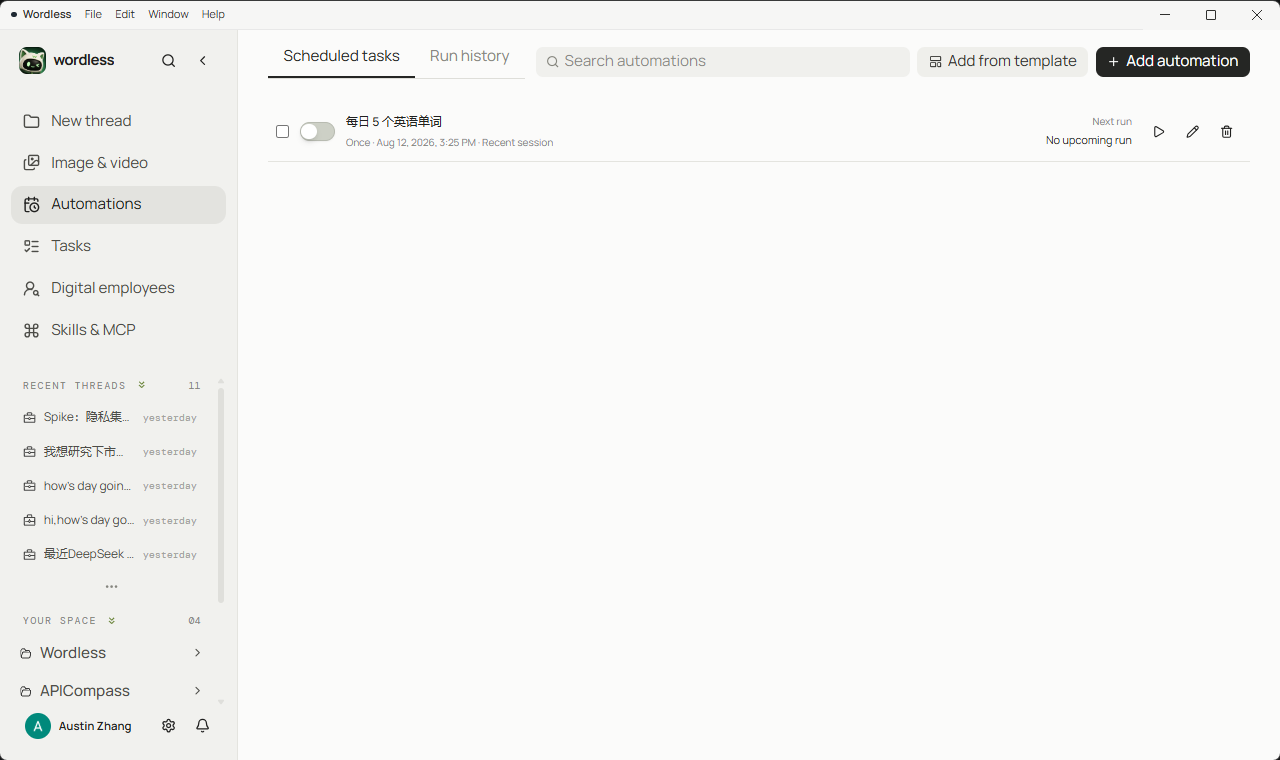
Section titled “Open the automation list”Open Automations in the left rail. Scheduled tasks lists each automation’s name, schedule, and next run. The toggle keeps the definition without scheduling. The play control runs it immediately, without waiting for the clock.
Start from a template
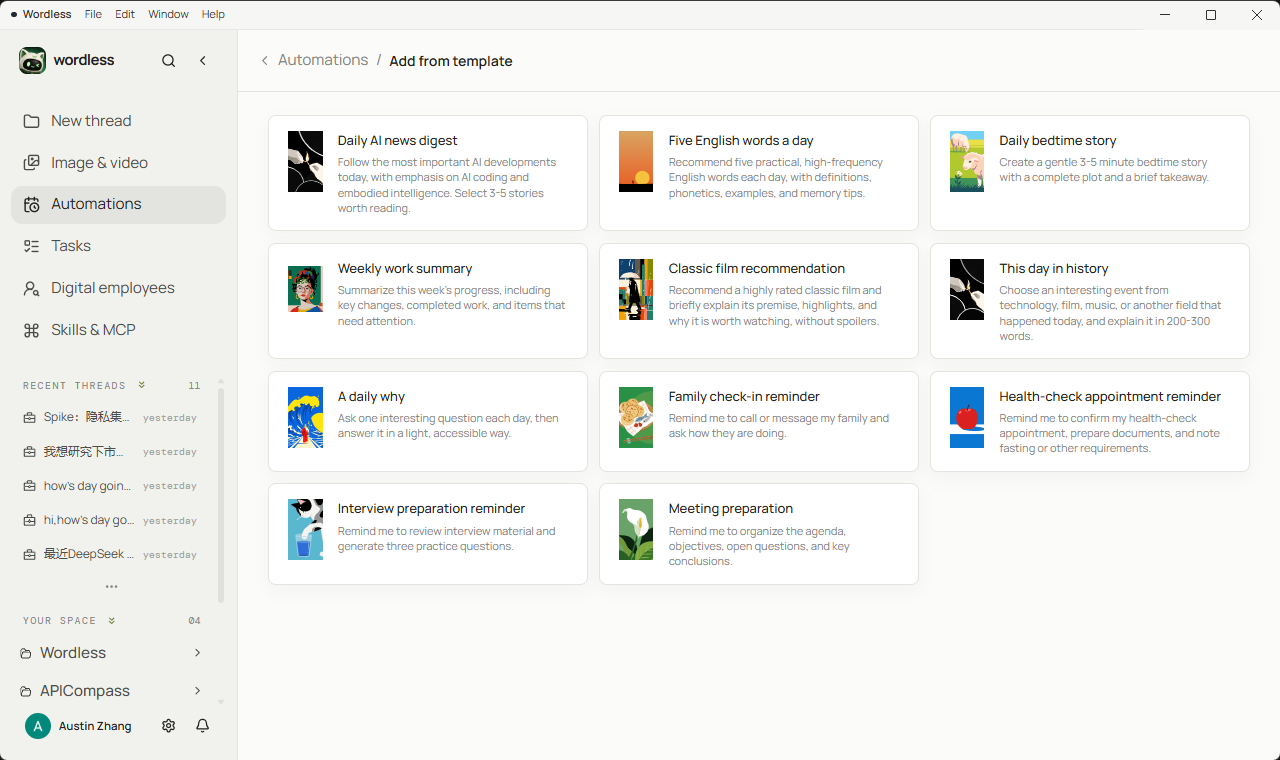
Section titled “Start from a template”Use Add from template when you do not want to write the prompt from scratch. Templates cover digests, reminders, and routine checklists. Review the prompt, model, and permissions before saving.
Fill in an automation
Section titled “Fill in an automation”Automations currently use General Work, so there is no Agent selector. Choose a model, then configure the workspace, Skills, MCP, tool approval, and access scope.
- Enter a name and prompt. State the output format, input scope, output path, prohibited actions, and acceptance checks.
- Choose a model and thinking depth. The model must remain enabled and configured when the scheduled run starts.
- Select a workspace for local material; add a Skill or connected MCP only when the task needs it.
- Choose a recurring schedule, interval, or one-time run. Optionally set an active date range; turn off Enable after saving to save a draft.
- Save. Missing name, prompt, or model, an invalid schedule, and an invalid date range are shown next to the relevant field before a request is sent.
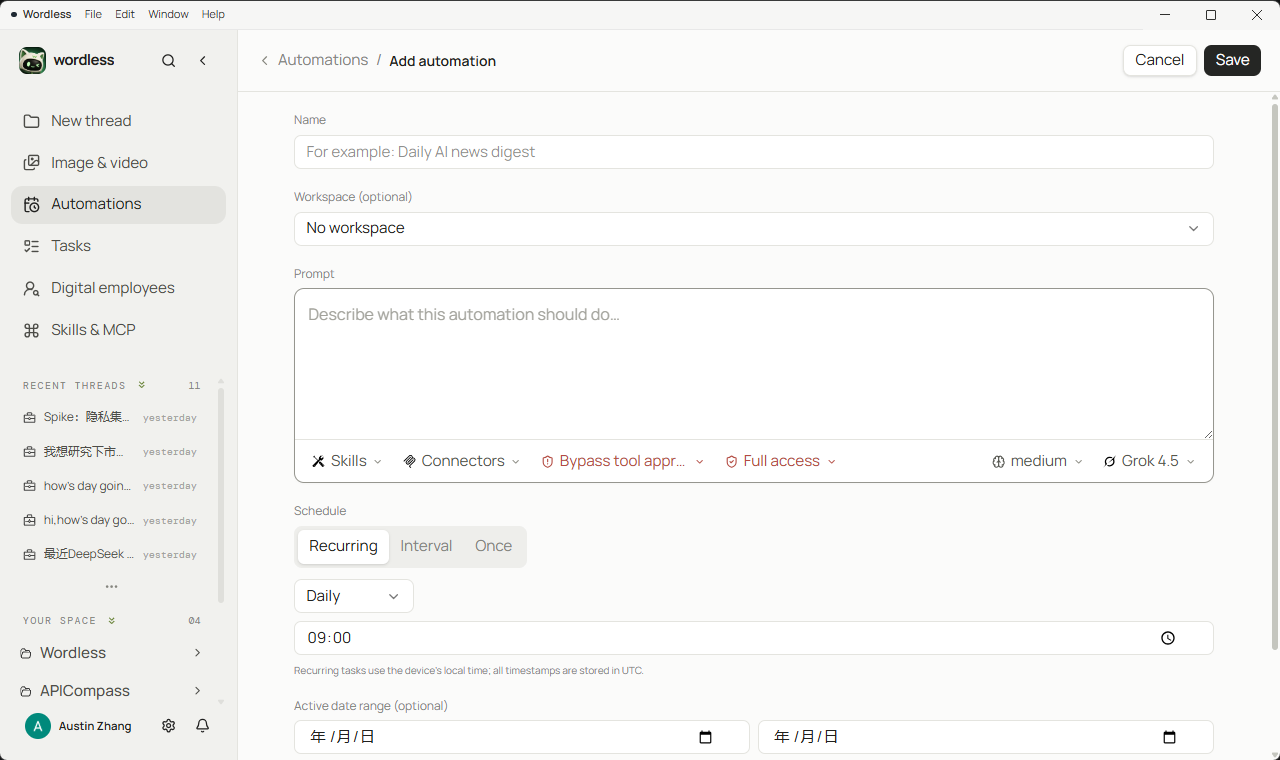
New automations default to Full Access + Bypass tool approval and require confirmation before saving. For a task that only reads and organizes workspace material, switch to Default Access + Auto-approve normal actions, then validate once with Run now.
inbox/ and notes/ in the current workspace. Write a Markdown brief to reports/daily-brief.md with items, source paths, suggested priority, and questions requiring confirmation. Do not delete, overwrite, or move existing files. If there is no new material, write “No new material today” and state the checked scope. Before finishing, verify that every conclusion has a source path.Schedule, active dates, and recovery
Section titled “Schedule, active dates, and recovery”| Setting | Use it for | Keep in mind |
|---|---|---|
| Recurring | Daily, weekdays, weekly, or monthly at a local clock time | A monthly day that does not exist in a month is skipped |
| Interval | Every N minutes, hours, or days | Avoid intervals shorter than the task can complete |
| Once | A single date and time | The task is no longer scheduled after the run is collected |
| Active dates | Limit when the schedule is eligible | The end date cannot precede the start date |
The scheduler is active while the Wordless desktop process is running. When the app starts or the device resumes, schedules are restored and the latest eligible missed run may be recovered; every missed run is not replayed. This is not a cloud SLA or a second-precise job system. Use a server-side scheduler for work that must run while the computer is off.
Tool approval and access
Section titled “Tool approval and access”| Setting | Runtime behavior | Use it when |
|---|---|---|
| Ask every time | Each tool operation waits for your decision | You are still testing or writing important material |
| Auto-approve normal actions | Ordinary actions continue; high-risk actions pause | A verified low-risk read and organize workflow |
| Bypass tool approval | Ordinary and high-risk tool operations are approved automatically | The scope is narrow, reversible, and thoroughly tested |
| Default Access | File tools stay inside the selected workspace | Most local automations |
| Full Access | A wider file and tool boundary is available | The target paths and impact are understood |
With Ask every time, or when Auto-approve reaches a high-risk action, the run becomes waiting until you resolve an approval or user question.
Inspect every run
Section titled “Inspect every run”Open Run history, filter by status, and expand a row. Do not treat completed as proof of a correct result; open the linked session and check the artifact, sources, tool parameters, and errors.
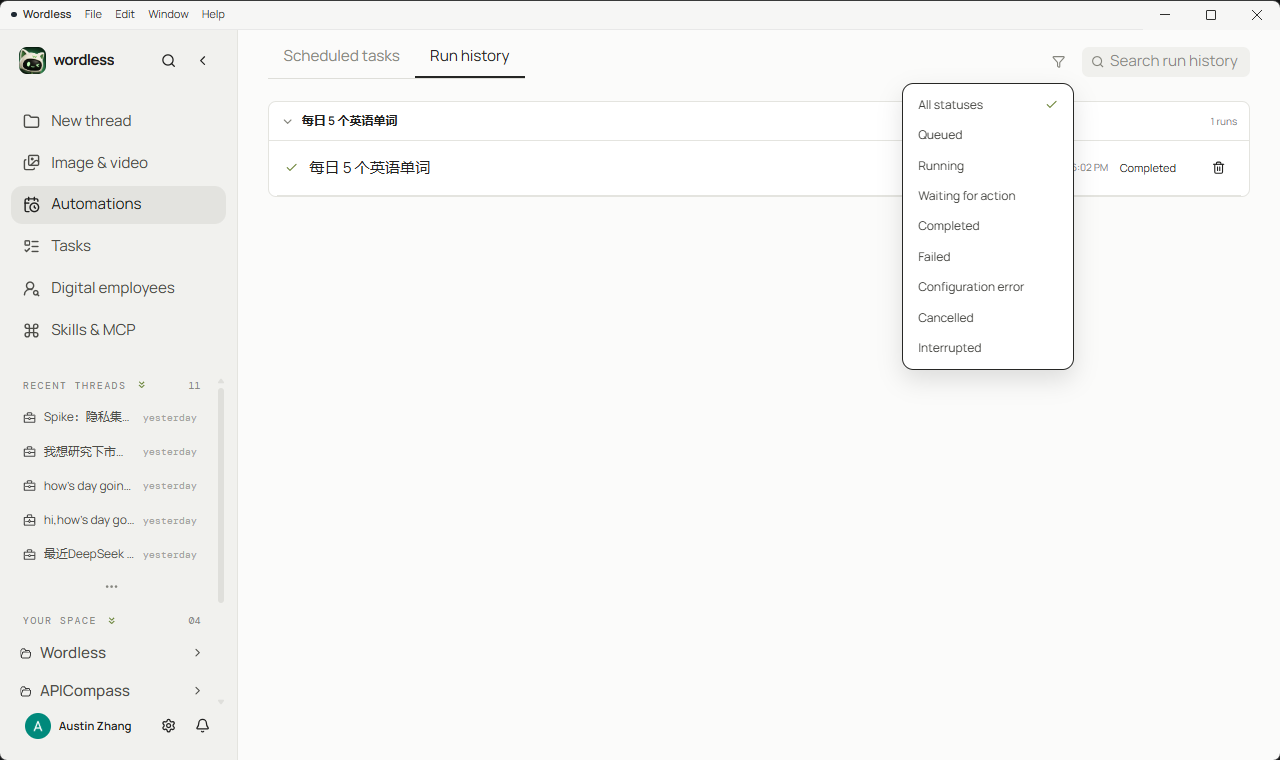
| Status | Meaning | Next action |
|---|---|---|
| queued | Due and waiting for an execution slot | Wait; up to three runs can be active at once |
| running | The session is being created or is executing | Inspect its tools and output |
| waiting | Approval or user input is required | Resolve the card or answer the question |
| completed | The session ended | Verify the deliverable and sources |
| failed / cancelled | Execution failed or was cancelled | Read the run/session error and correct the path, credential, or prompt |
| configuration-error | A model, workspace, Skill, or MCP was unavailable at runtime | Restore the resource, then run again or wait for the next schedule |
Troubleshooting
Section titled “Troubleshooting”- Nothing starts: Confirm the task is enabled, Wordless is still open, and the current time is inside the active range. Use Run now to validate the configuration.
configuration-error: Re-enable the model, Skill, or MCP; confirm the workspace still exists; then edit and save the automation.- The run stays
waiting: It needs an approval or clarification. Tighten the prompt, or change the approval mode only after a deliberate review. - A file was overwritten: Name the output path, overwrite policy, and backup rule explicitly. Keep manual approval for valuable material.