
Digital employees
A digital employee is not a different model name. It is a reusable session role: a name, description, portrait, instructions, and explicitly enabled Skills and MCP. Summoning an employee creates a new session and stores the role configuration as that session’s snapshot.
| Shape | Use it for | Accountability |
|---|---|---|
| Individual employee | A stable writing, research, review, or execution role | The role works in the primary session; you still verify the result |
| Employee team | Work with separable research, review, synthesis, or independent perspectives | The Team Lead owns the main conversation, delegation decisions, conflicts, and final delivery |
A team has two to nine members. The lead is not an extra-powerful member; the lead is the coordinator in the primary session. Other members run only when the lead delegates a task.
Browse employees
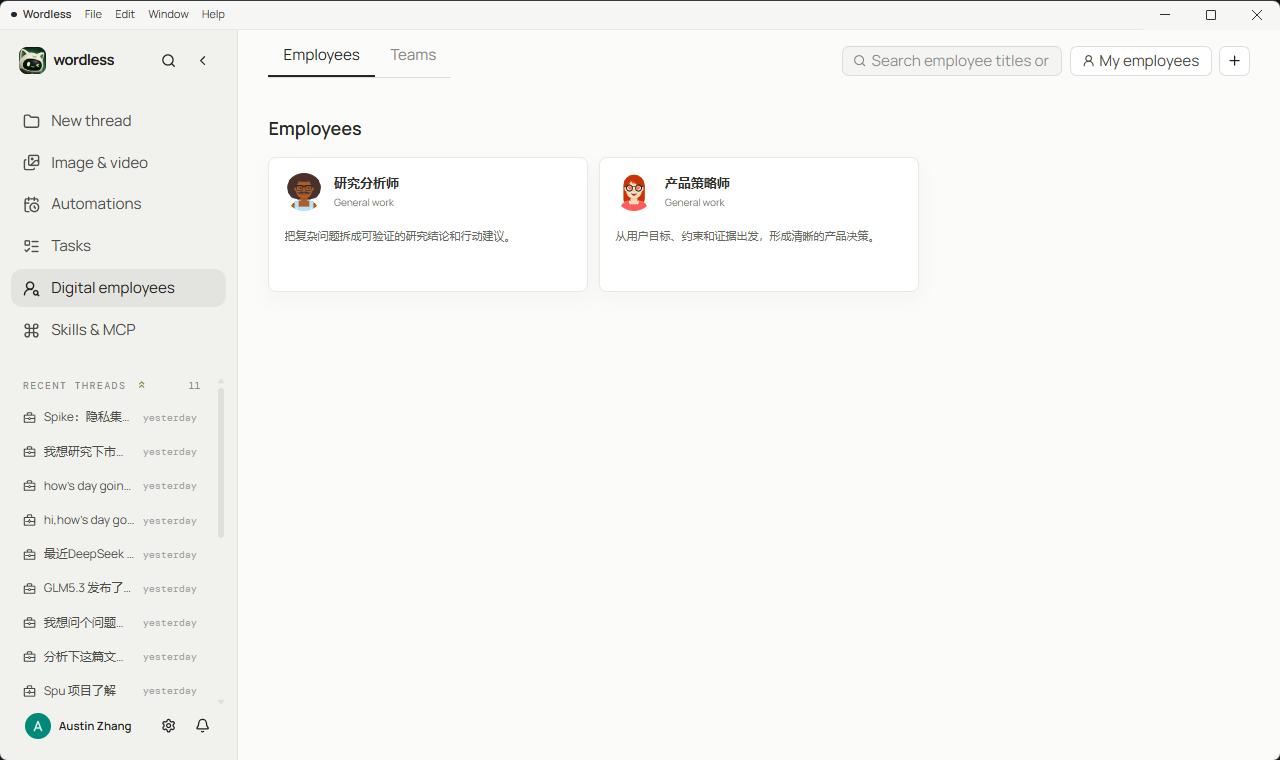
Section titled “Browse employees”Open Digital employees in the left rail and stay on the Employees tab. Cards show the name, summary, and portrait. Use + to create one. Summon from a card or detail view opens a new session from the current snapshot. Later edits do not rewrite a session that has already started.
Create an individual employee
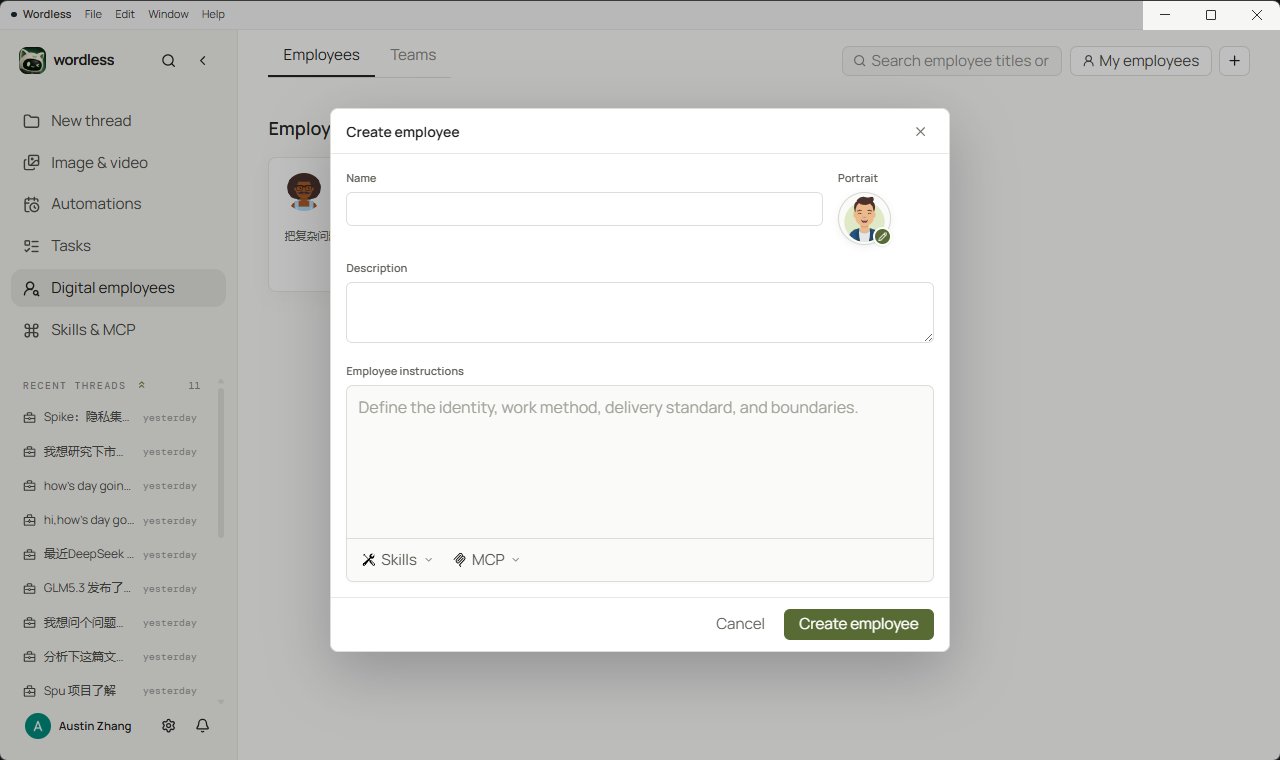
Section titled “Create an individual employee”Enter the name, description, and employee instructions. Keep durable rules in the instructions: identity, responsibility, input boundary, output format, prohibited actions, and evidence requirements. Leave one-off outcomes in the summon prompt. Select only the Skills and MCP this role actually needs.
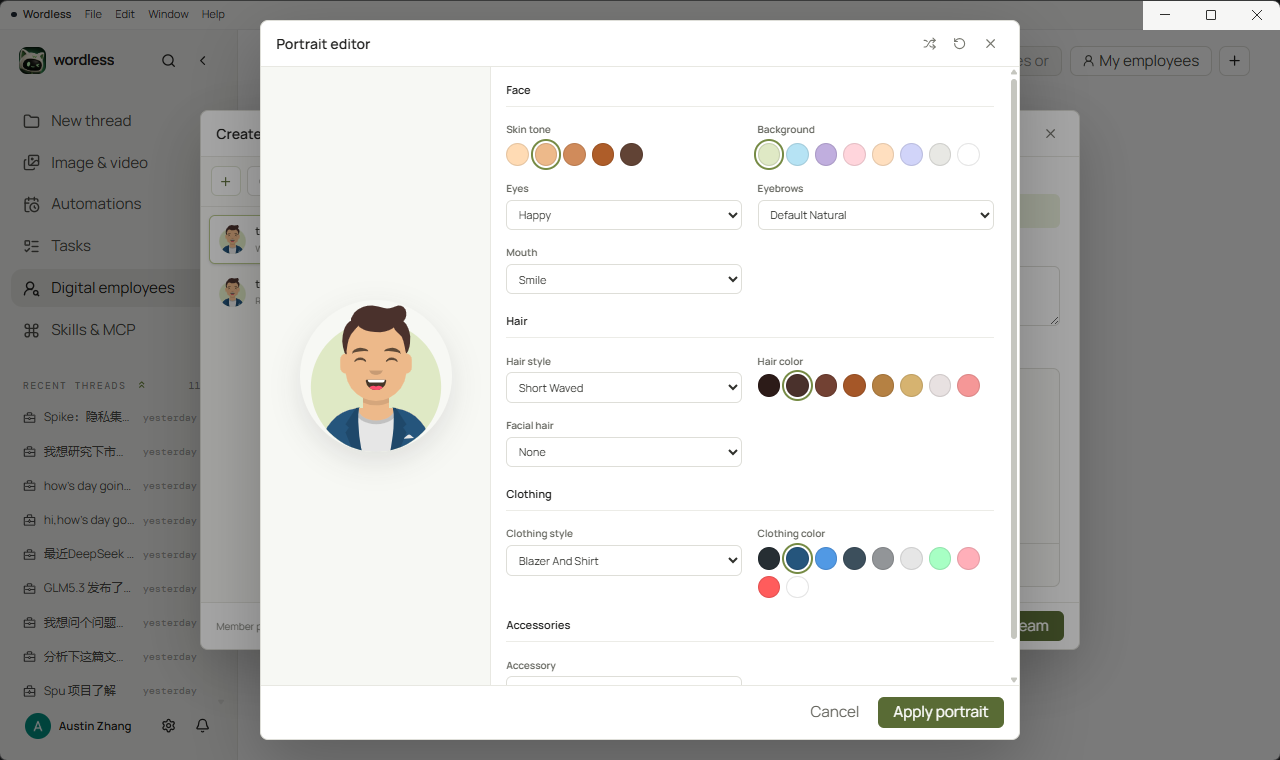
The portrait identifies the role in cards, sessions, and rosters. It does not change model capability. Open the portrait editor from the avatar to randomize or adjust face, hair, and clothing, then apply.
Before deleting a role or removing it from a team, check which sessions, teams, and task board items still reference it.
Select a role in a thread
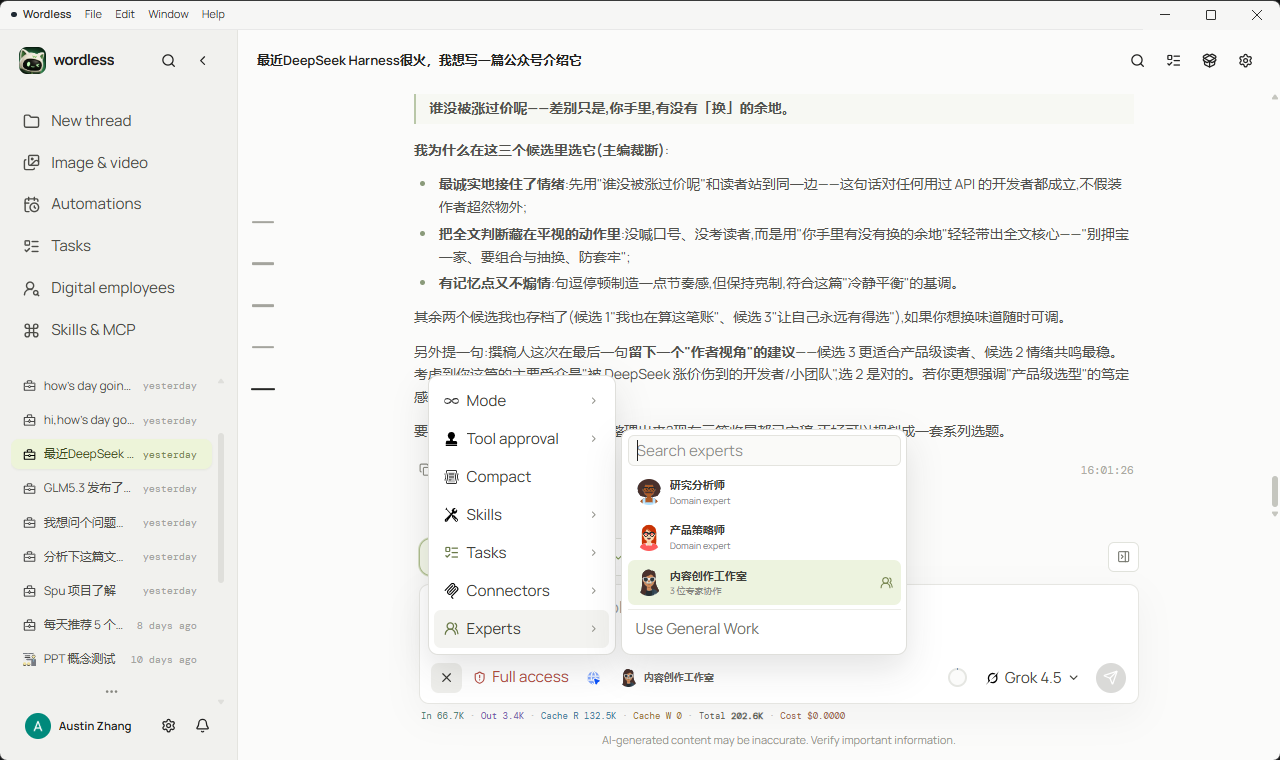
Section titled “Select a role in a thread”In an existing thread, open Composer’s + menu and choose Experts to switch to an employee or team. Use General Work returns to the generic agent. Run on the task board and Summon on the employee page both create a new session. Typing ! in Composer only inserts task text; it does not summon the employee.
On the task board, you can also set the agent type to that employee or team and click Run. Wordless opens a session from the saved snapshot.
Browse teams
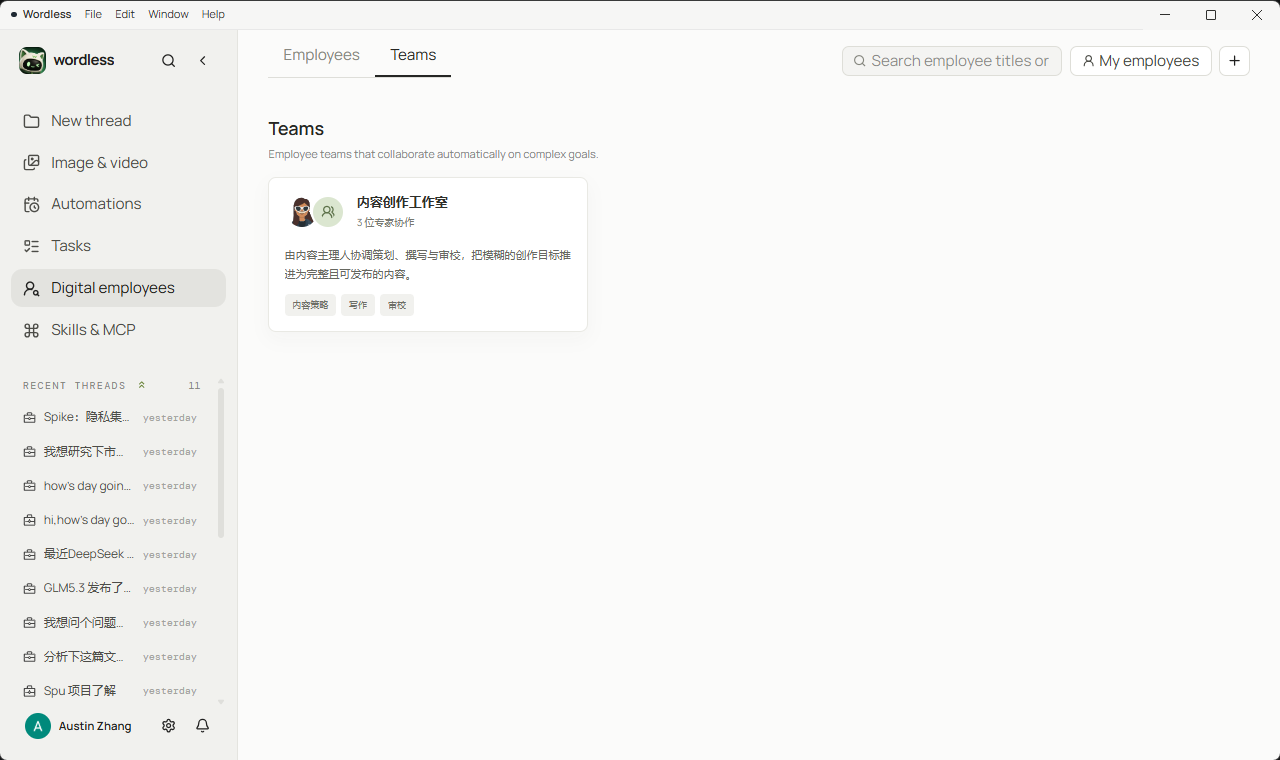
Section titled “Browse teams”Switch to the Teams tab. Cards show how many members collaborate and their specialty tags. Use + to create a team.
Configure team members
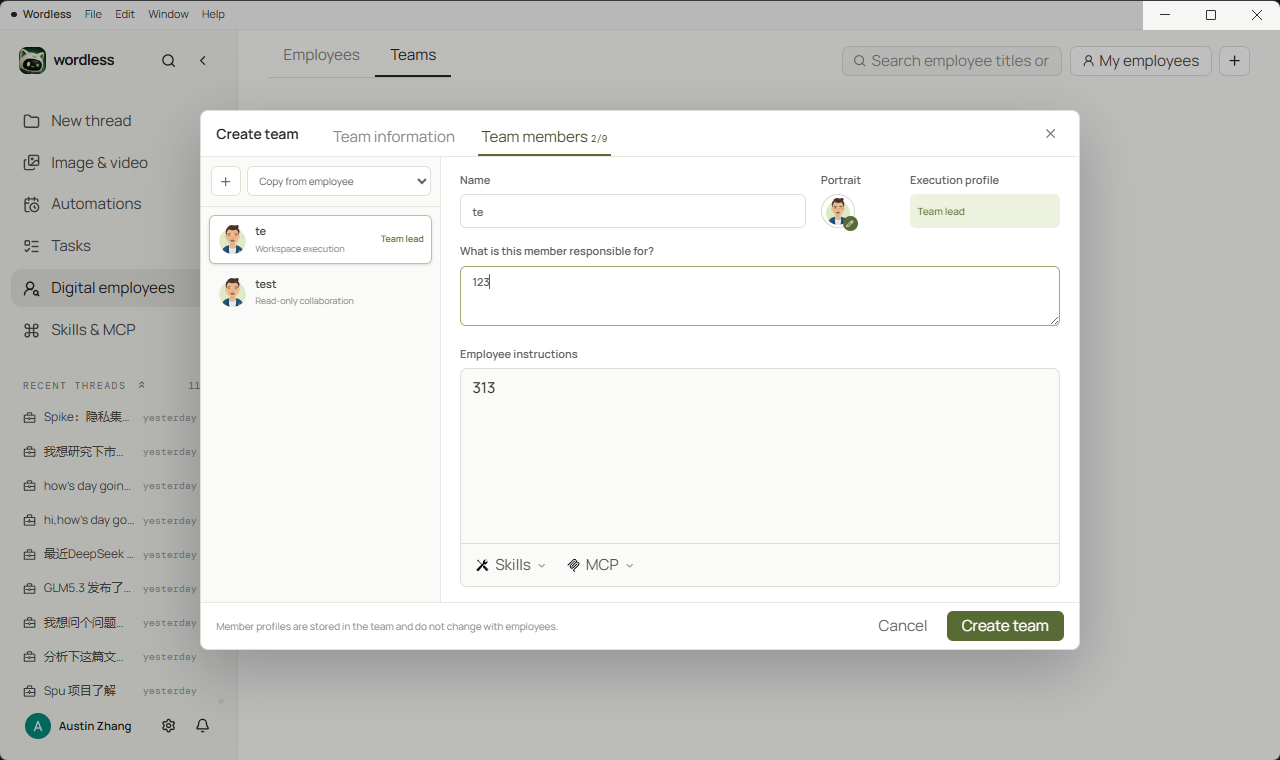
Section titled “Configure team members”The team editor separates team information from the roster. Team instructions describe the shared outcome, delivery standard, when to delegate, and how the lead should synthesize results.
- Add at least two members, or copy existing employees. Every member needs a name, responsibility, and member instructions; a team can contain up to nine members.
- Choose a Team Lead. The lead owns the main conversation, task scheduling, and final response. Changing the lead sets its execution boundary to
workspace-write. - Choose a profile for collaborators:
read-only,review,research, orworkspace-write. Only non-lead members can set a separate model and thinking depth; leaving them unset follows the primary session. - Save and summon the team. When delegation is worthwhile, the lead calls
delegate_expertand chooses single, parallel, or sequential work.
Member execution profiles
Section titled “Member execution profiles”| Profile | What it can do | Default boundary |
|---|---|---|
read-only |
Inspect context and return a focused result | No file changes and no further delegation |
review |
Check material and identify concrete issues and improvements | Read-only; does not edit files directly |
research |
Use allowed search connectors and separate evidence from assumptions | Destructive connector operations are filtered out |
workspace-write |
Use in-scope workspace tools for the assigned work | Approvals, path boundaries, and task scope still apply |
Each member can have its own Skills, MCP, model, and thinking depth. If a selected model is unavailable, runtime capability resolution may fall back to another enabled model.
Delegate work
Section titled “Delegate work”| Mode | Use it when | Important limit |
|---|---|---|
| Single | One member owns a complete, focused subtask | Useful for targeted evidence or an independent opinion |
| Parallel | Two or more tasks have no dependency | Multiple workspace-write members cannot run in parallel until file ownership is coordinated |
| Sequential | A later member needs the previous result | If the prerequisite fails, dependent tasks are skipped |
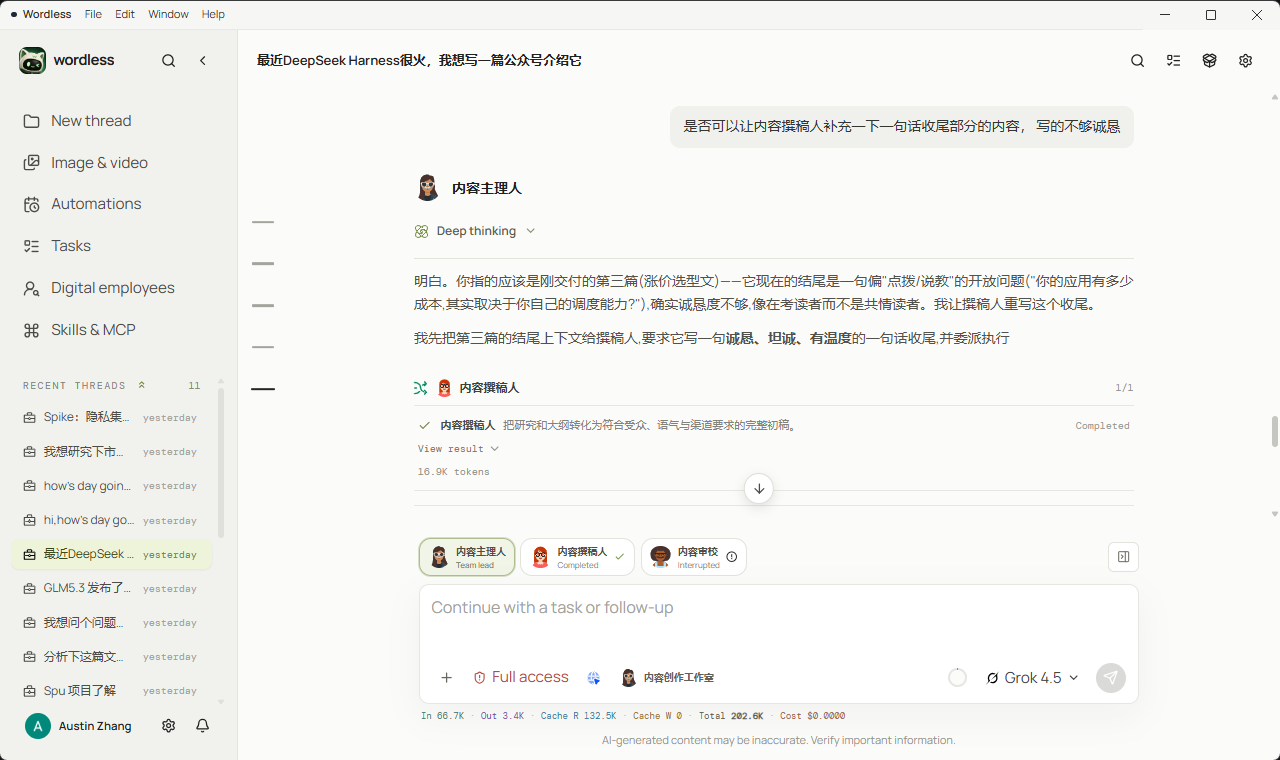
The lead does not need to delegate every turn. Handle simple questions, clarification, and work the lead can already complete. Members cannot delegate again; the lead must read every result, resolve conflicts, and deliver in the lead’s own voice.
Inspect a member turn
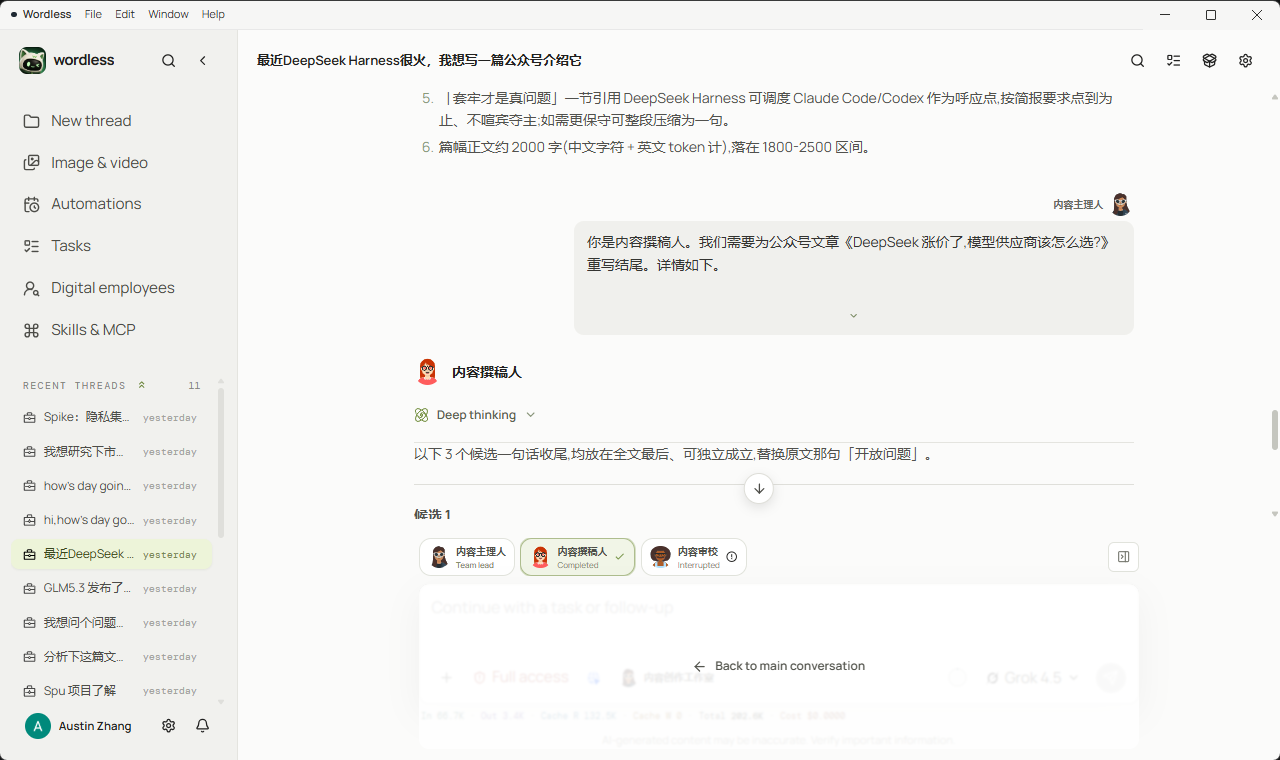
Section titled “Inspect a member turn”Open a member task to enter a nested session, inspect that member’s output, then return to the main conversation. Do not paste raw member output into the final deliverable.
Check Artifacts
Section titled “Check Artifacts”The right Artifacts panel groups deliverables, shared material, and member output. Open the files to verify; do not rely on the chat summary alone.
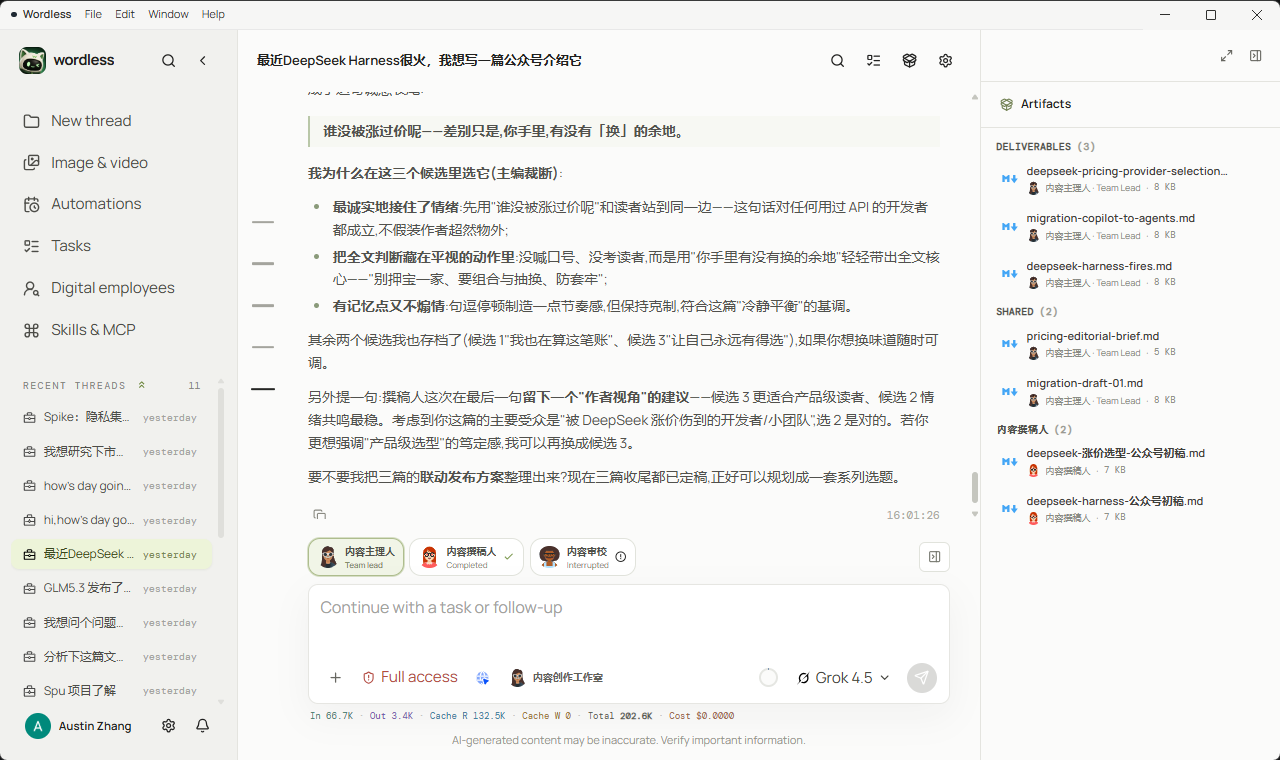
Verify a digital employee
Section titled “Verify a digital employee”Start with a small task. Check that the role follows its responsibility, distinguishes fact from assumption, uses only necessary tools, names the target path before writing, and in a team session shows delegation and a final synthesis. Only then use the role for long documents or batch file work.
Troubleshooting
Section titled “Troubleshooting”- The employee sounds generic: Put responsibility, terminology, output format, and prohibited actions in the employee instructions, then provide a concrete deliverable in the summon prompt.
- The team never delegates: Confirm that the task has separable expertise and state delegation criteria in the team instructions; delegation is a judgment, not a required step.
- Parallel work is rejected: Check for multiple
workspace-writemembers. Use sequential work or define non-overlapping file ownership first. - A member is waiting for approval: Open its approval card and review the connector, path, parameters, and overwrite behavior. Do not hide an unclear responsibility behind broader access.
- Instruction edits did not change an old task: Sessions and board runs already started use the snapshot from summon time. Summon again after editing, or create a new task and run it.