
Task board
The task board stores a trackable work item separately from a single agent run. Each card has a title, status, due date, and execution boundary. Run creates or continues a session. Automation fires a fresh session on a local clock; the board waits until you decide which item to run.
Open Tasks in the left rail, or use the workbench task control. The same records appear in Overview, Board, Timeline, List, and Dashboard. Dragging a card changes status only; it does not execute the agent.
Overview
Section titled “Overview”Use Overview to see what needs attention now: overdue items, recent activity, and work due in the next three days. New task in the header is shared across views.
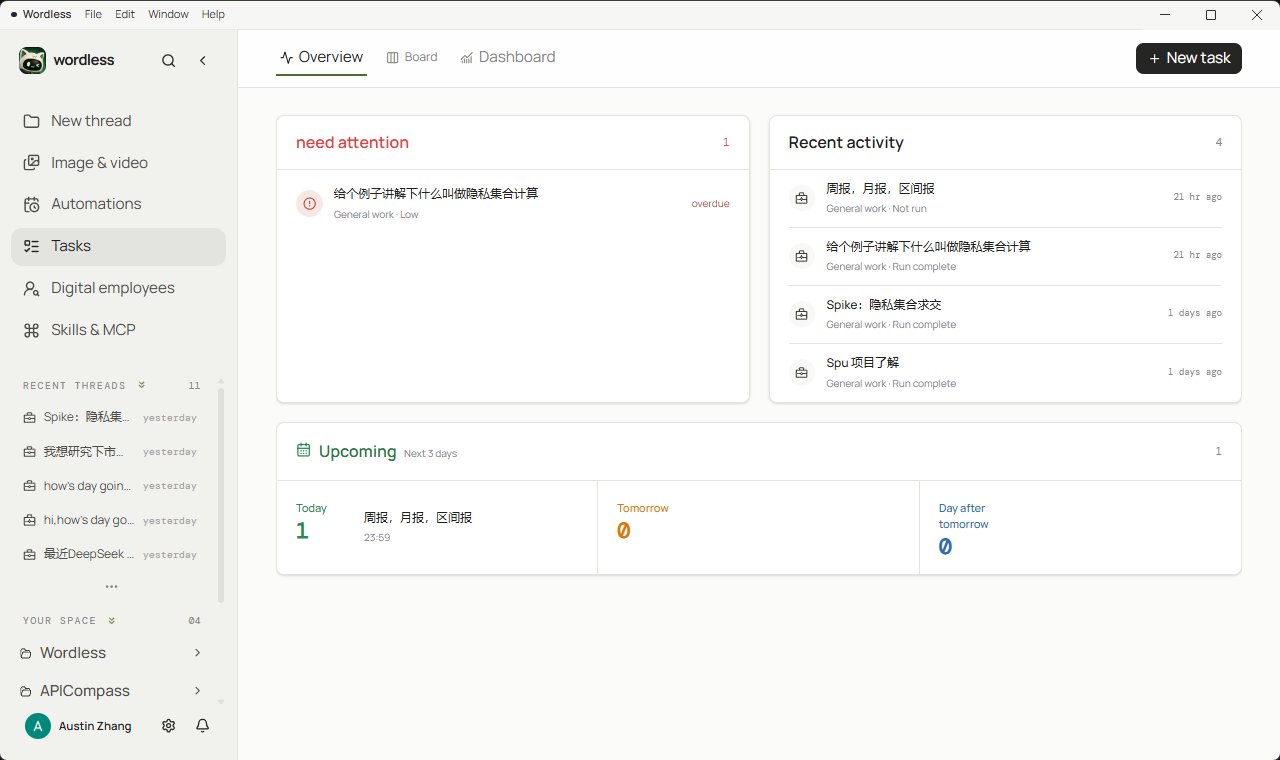
The board splits work into To do, In progress, In review, and Done. Drag a card to change status. The play control on a card is Run: it builds a prompt from the title, details, Skills, and expected result, then creates or continues a session.
Timeline
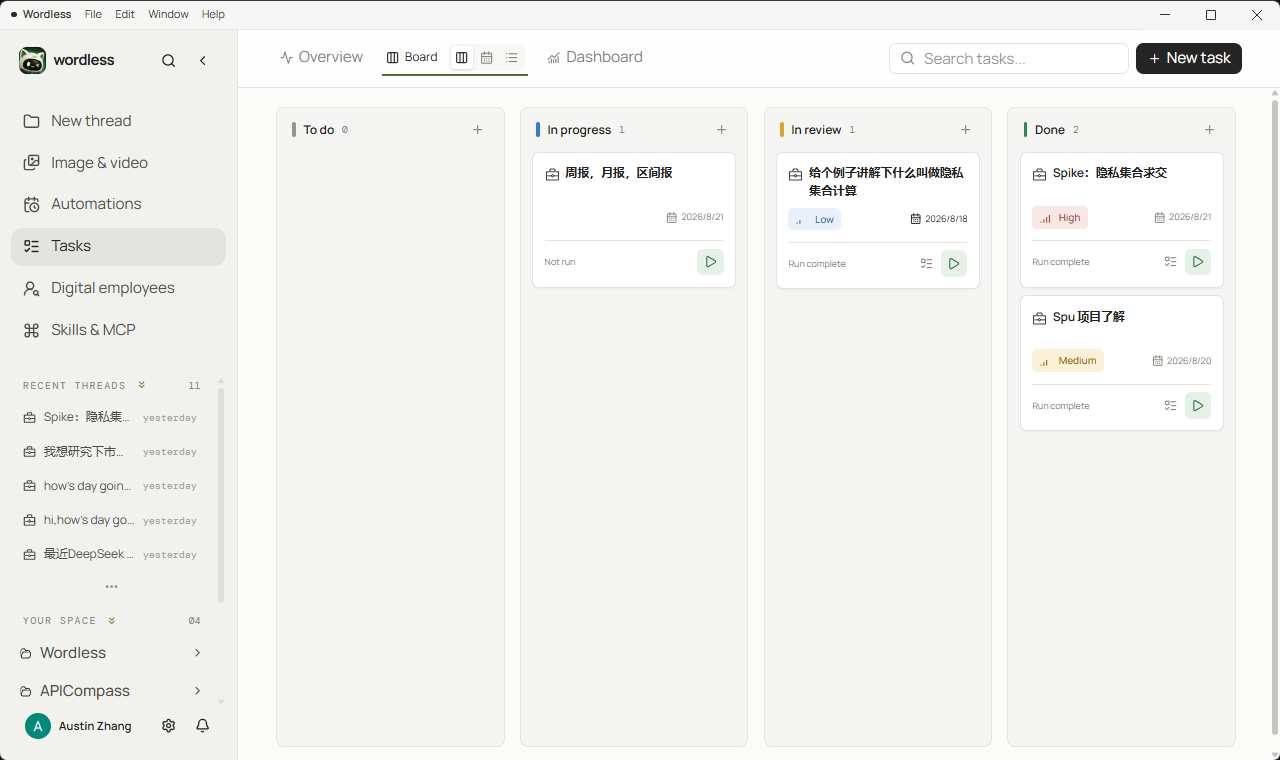
Section titled “Timeline”Timeline lays tasks out by due date. Switch week, month, quarter, year, or a custom range. Colors match In progress, In review, and Done. Use it to read load across a period, not to change status.
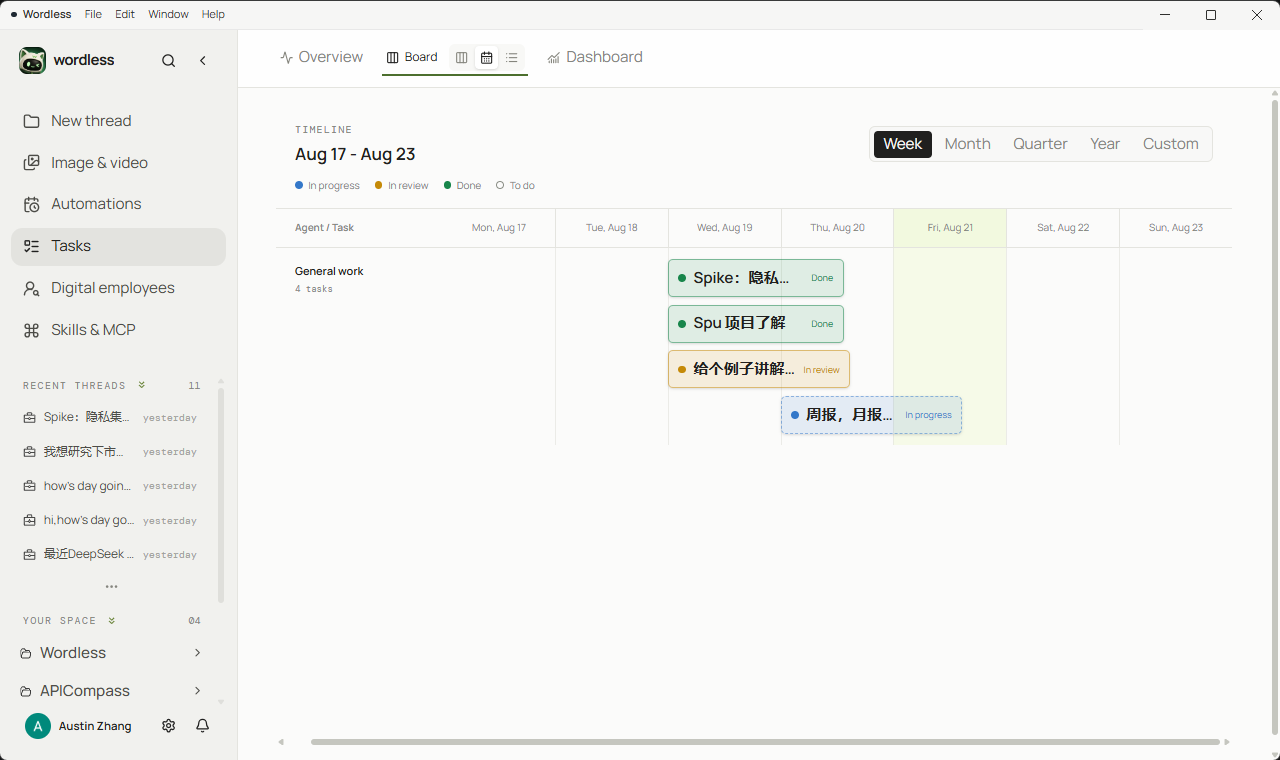
List is for filtering and paging: status, agent, priority, or overdue-only. Each row shows the due date and execution state.
Dashboard
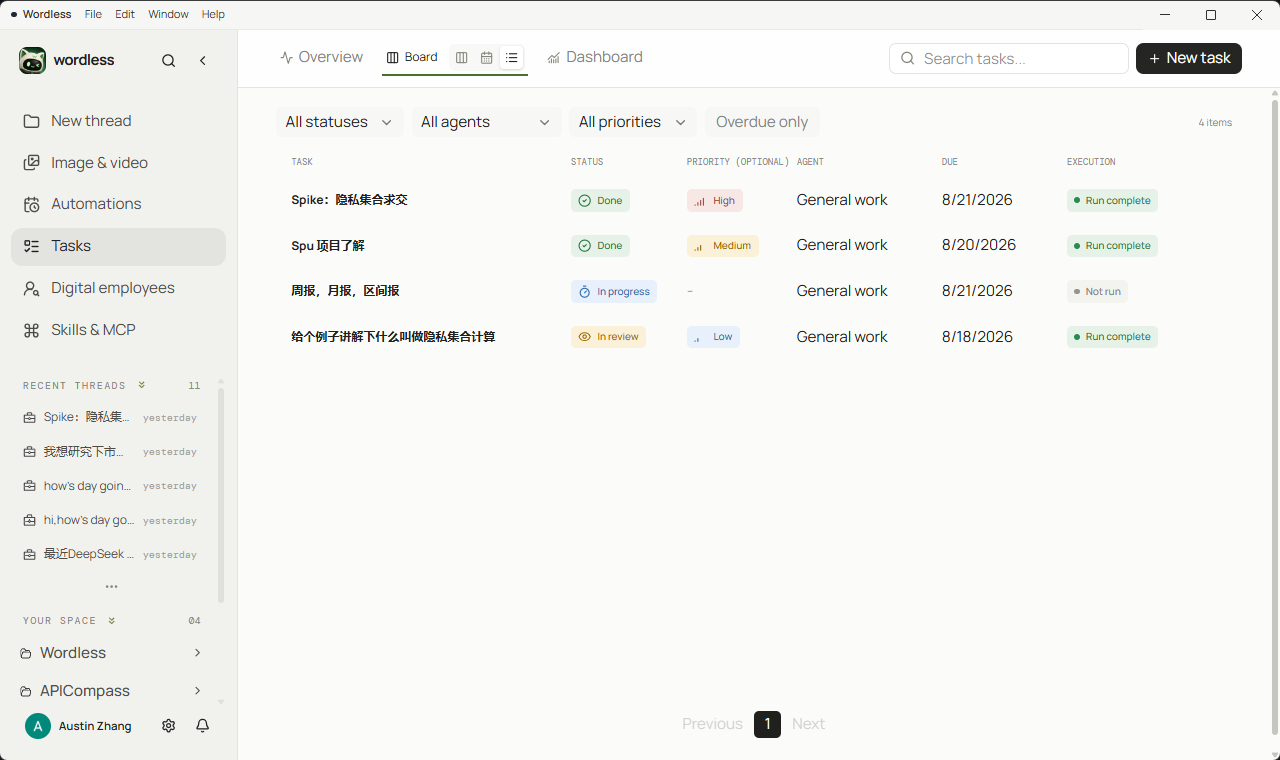
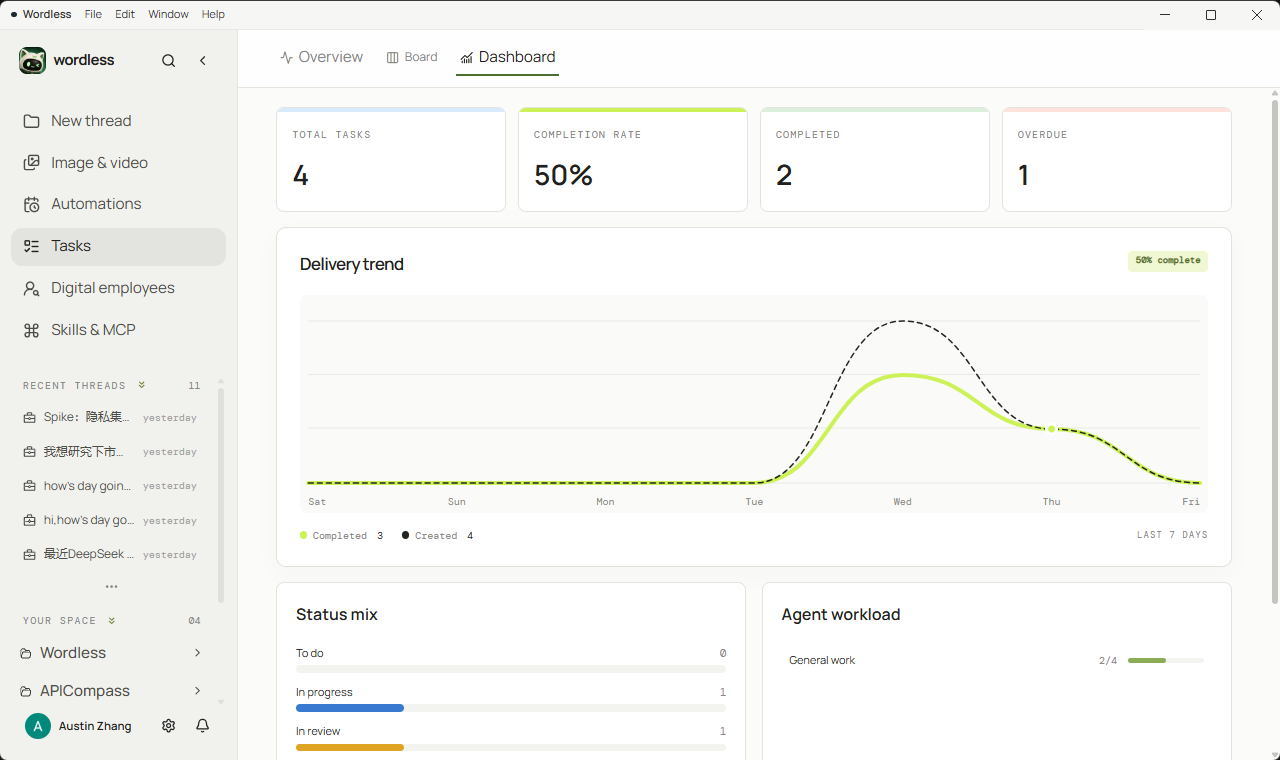
Section titled “Dashboard”Dashboard summarizes the queue: totals, completion rate, overdue count, seven-day delivery, status mix, and agent workload. It does not run tasks.
Create a task
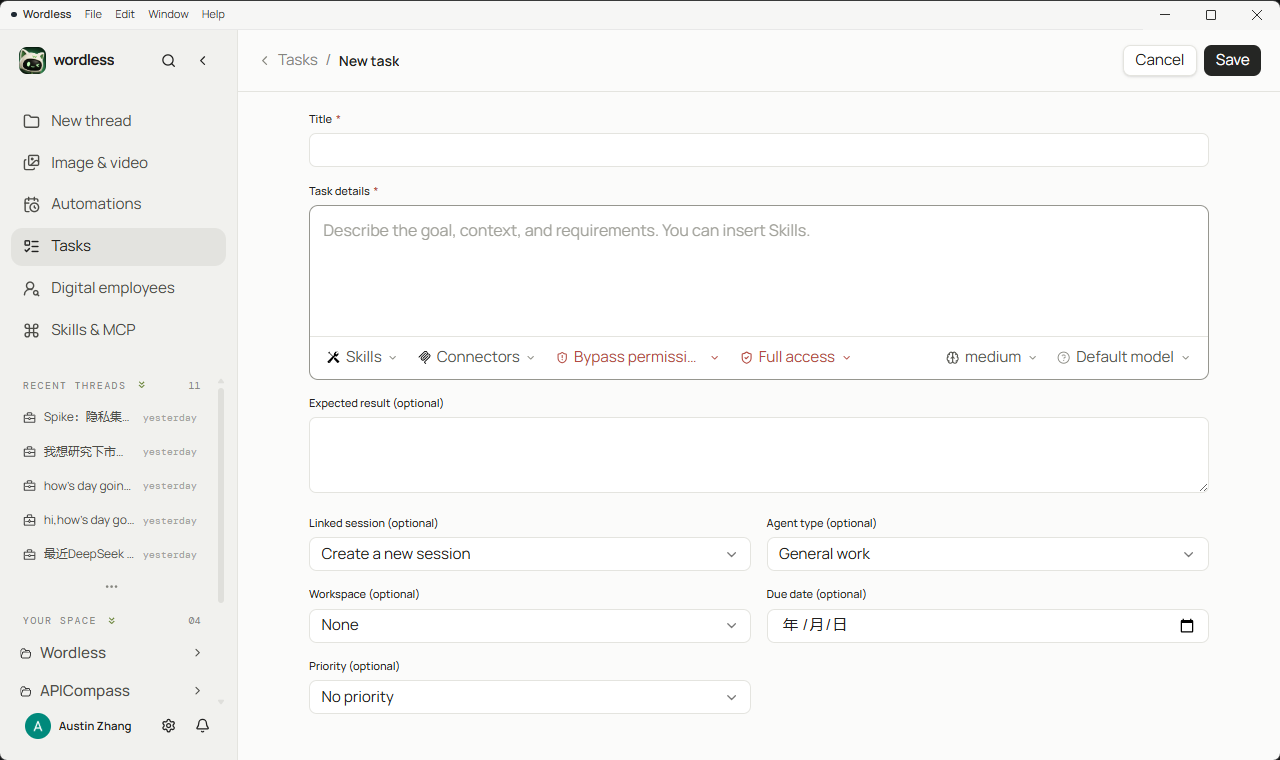
Section titled “Create a task”Choose New task. Title and details are required. Expected result, due date, priority, workspace, linked session, and agent type are optional.
- Enter a title. It appears on the card, in Overview, and in Composer’s
!picker. - Write the goal, background, inputs, and constraints in the details field. The field accepts enabled Skills the same way Composer’s
$picker does. - Optionally add an expected result. A run appends it to the prompt.
- Choose a workspace. To continue an existing thread, link a historical session. After linking, workspace, work type, and digital employee must match that session.
- Choose an agent type: General Work, another available work mode, or a saved digital employee or team. Leaving it unset uses the generic agent.
- Set model, thinking depth, MCP connectors, access level, and tool approval when needed.
inbox/ in the current workspace. Write a one-page Markdown decision brief to reports/inbox-brief.md covering items, source paths, suggested priority, and open questions. Do not delete or overwrite existing files. If nothing is new, write “no new material today” and state the scan range. Every conclusion must cite a source path.Run or open a session
Section titled “Run or open a session”Run on the board or list creates a session, or sends the prompt to a linked session. Open session jumps to that thread without sending. A task that is starting, running, or waiting cannot be run again or deleted. If the linked session already has an active turn, wait until it finishes.
Insert a task into Composer
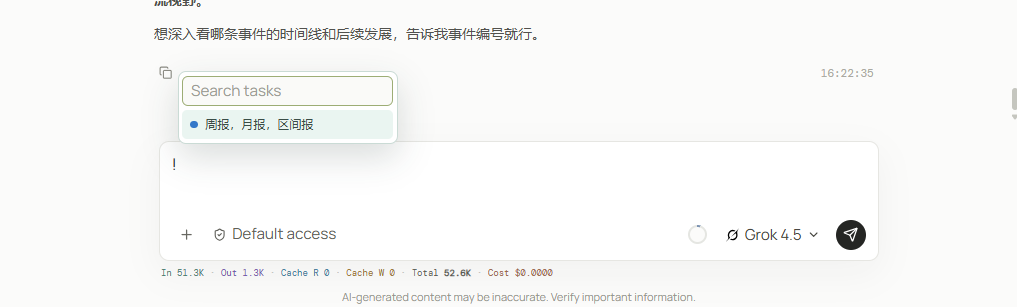
Section titled “Insert a task into Composer”When you are already in a thread and only need the task as context, type ! in Composer. It searches To do and In progress only. Enter inserts the title, details, and expected result; it does not run the task and does not change board status. Sending stays a separate confirmation. The + menu exposes the same picker.
Status and overdue work
Section titled “Status and overdue work”| Status | Meaning |
|---|---|
| To do | Not started; draggable on the board and listed in the ! picker |
| In progress | Started or currently executing; still available to ! |
| Review | Waiting for you to inspect the output before moving it to Done |
| Done | Hidden from the ! picker; overdue filters ignore completed items |
Tasks with a due date that has passed and are not Done appear under Overview’s attention list and the list view’s overdue filter. Dragging a card to Done records a completion time; it does not start another agent run.
Agent type can be a work mode or a saved digital employee or team. A run uses that role’s snapshot. Editing the employee later does not rewrite a session that already ran.
How this differs from Automation
Section titled “How this differs from Automation”| Task board | Automation | |
|---|---|---|
| Trigger | You click Run, or insert the text into the current thread | A local clock fires on a recurring, interval, or once schedule |
| Session | New session, or continue a linked session | Every run is a fresh General Work session |
| Work mode | General Work, another mode, or a digital employee | General Work only |
| Fit | Project to-dos, one-off deliverables, work that should wait for a person | Repeatable work whose inputs and permissions can be written in advance |
Unrun tasks stay on disk after you quit Wordless. They do not continue in the background.
Troubleshooting
Section titled “Troubleshooting”- The task appeared in Composer but nothing ran:
!only inserts prompt text. Use Run on the board, or send the Composer draft yourself. - Run is blocked: The task is already starting, running, or waiting, or the linked session has an active turn.
- Linked session conflict: Workspace, work type, or digital employee does not match the session. Align the task fields, or unlink and create a new session.
- Permissions are too wide: Edit the task, switch back to Default Access and manual approval, and confirm the high-permission warning is gone before saving.
- Composer cannot find the task:
!lists To do and In progress only. Done and Review items are omitted.