
Manage conversations
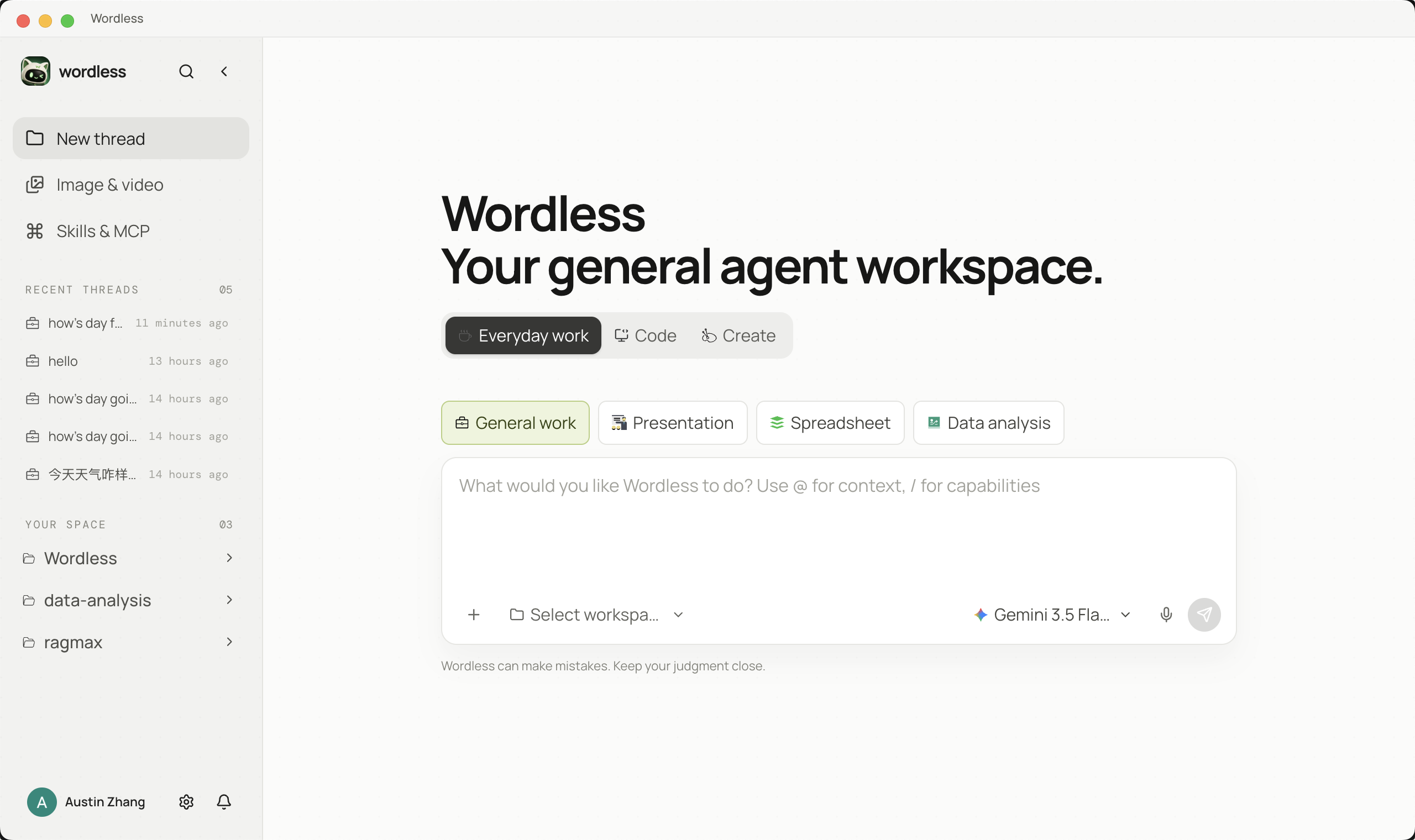
A session record is the local history of one agent conversation: title, messages, tool results, artifact references, and the work mode in use. New thread only opens a blank composer. The first send writes a session and lists it in the sidebar.
This is not the task board. A board card is a to-do; Run creates or continues a session. Automation always starts a fresh session. Conversation management is the record of sessions that already happened.
Find sessions in the sidebar
Section titled “Find sessions in the sidebar”The left list has two sections:
- Recent threads: conversations with no workspace. The list shows the latest 5 by default; expand to see the rest. A pinned or running session below the fold expands the list automatically.
- Your space: sessions grouped by workspace. Click a workspace name to expand or collapse it. The group that owns the open session expands on its own.
Each row shows the title, work-mode icon, and relative time. While a reply is generating, a spinner appears on that row; do not start the same turn again.
Start or continue
Section titled “Start or continue”- Click New thread, choose a work mode, and send the first message. With no workspace, the record lands in Recent threads. With a workspace, it lands under Your space.
- To continue, click the title. The session restores messages, tool cards, the workspace, and the access level from that thread.
- Titles are generated from the conversation. To change the sidebar name, hover the row, open Session actions, choose Rename, and press Enter.
One workspace can hold many sessions. Opening another thread does not merge history. To bring a board item into the current composer, type !. See Manage tasks.
Search sessions and messages
Section titled “Search sessions and messages”- By session title: click the search icon at the top of the sidebar. An empty query lists recent sessions; typing matches titles. Use ↑/↓ and Enter to open one.
- Inside the current thread: with a session open, use Search messages in the workbench header. It searches message text, file, folder, and Skill references. At most 50 hits are shown; narrow the query if needed.
With an empty Composer and no @/$/! picker, ↑ and ↓ move through user-message history.
Pin, open folder, and delete
Section titled “Pin, open folder, and delete”Hover a session row and open Session actions:
| Action | Effect |
|---|---|
| Open folder | Opens the associated workspace in the system file manager |
| Rename | Changes the sidebar title only, not the workspace folder name |
| Pin session / Unpin session | Pinned items sort to the top of the same group |
| Delete | Removes the session record and message history |
Image generation canvas sessions do not appear in Recent threads. Open them from Image & video in the left rail.
Context compaction
Section titled “Context compaction”When a long thread nears the model window, Wordless summarizes older turns and keeps recent context. The status may read Organizing earlier conversation…; the current turn continues afterward and is not treated as a new user task. Enable Context compaction under Settings → Assistant. The Composer + menu offers Compact once the thread has more than one message.
Session messages, tool results, and run records stay on this device by default. Turning on Google cloud sync does not upload sessions. See Security & privacy for the full boundary.
Common issues
Section titled “Common issues”- Empty sidebar: no message has been sent yet, or the workspace group is collapsed. Use the top search to find a title.
- Missing a recent thread: sessions with a workspace live under Your space, not Recent threads. Expand that workspace.
- Files remain after delete: expected. Only the conversation history is removed.
- Delete fails: close artifact previews for that session, then retry.
- Unreadable title: Rename it. Sidebar search matches titles only, not message bodies. Use Search messages inside the open session for body text.