
Image generation
Image generation is not a chat thread. Open Image & video in the left rail. Each project is an infinite canvas: references, prompts, and outputs are connected nodes. These canvas sessions do not appear under Recent threads.
Add video in the Add menu is currently disabled. This page covers still images only.
Open or create a canvas
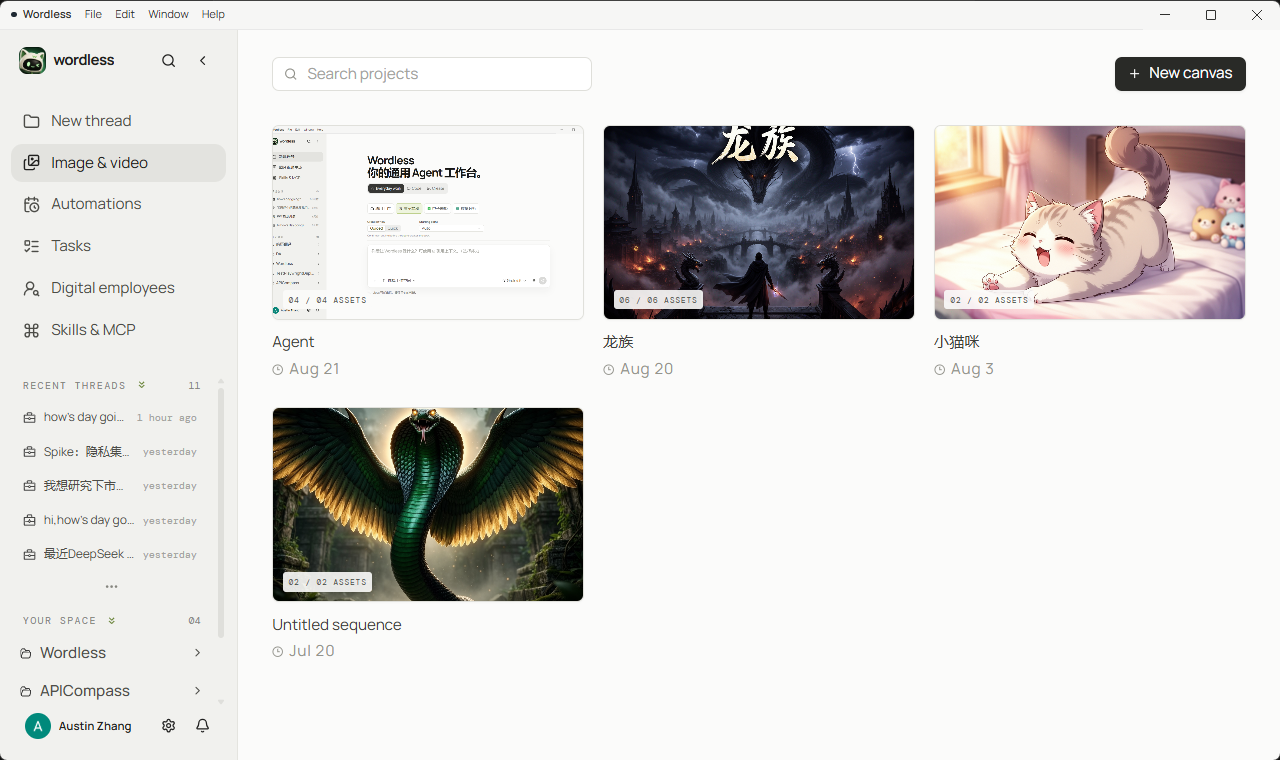
Section titled “Open or create a canvas”Search projects filters the library by title. The ASSETS badge is ready count / total count for that canvas.
- Click Image & video in the left rail.
- Click New canvas. An empty library also offers Create your first image canvas.
- The default title is
Untitled canvas. Double-click the title on the canvas to rename, or use Canvas actions on a library card to Rename or Delete.
Deleting a canvas also deletes its images and generation history. Download a node first if you need to keep the file.
Generate the first image
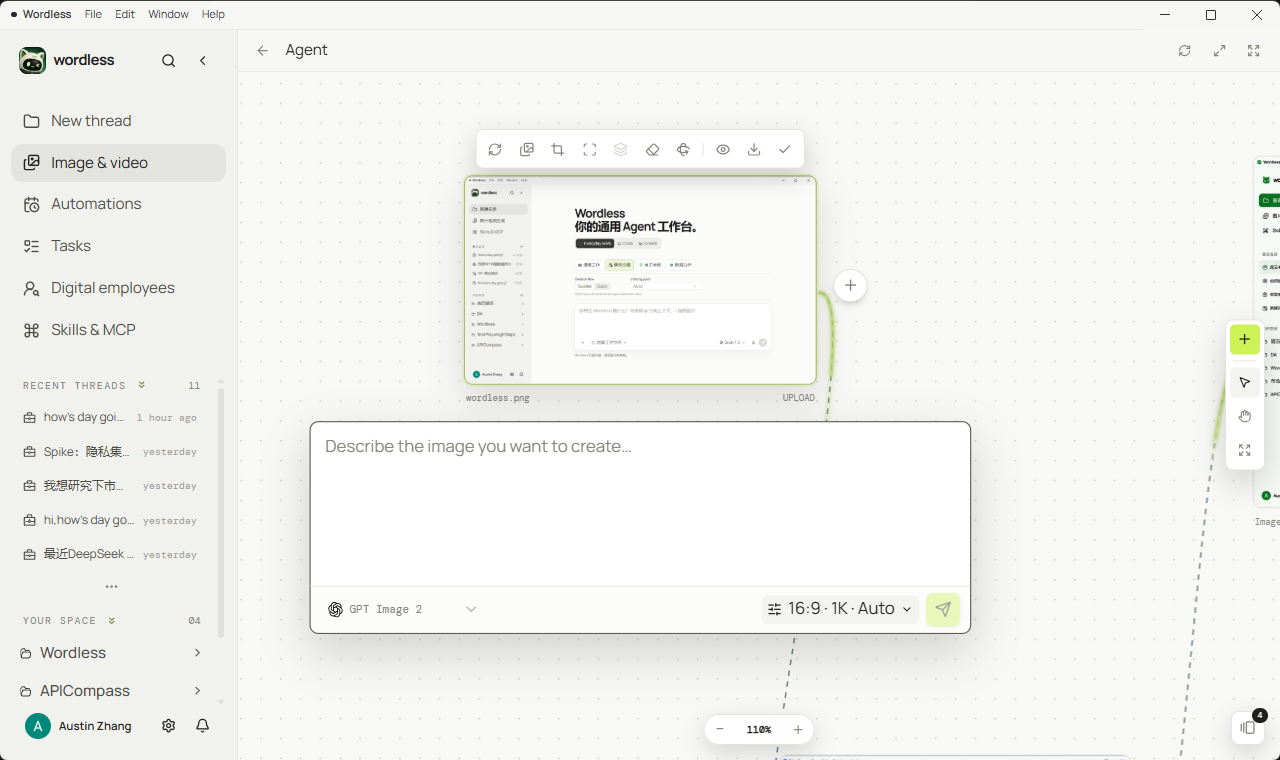
Section titled “Generate the first image”The empty canvas shows a prompt box. You can also Upload reference images on the dashed drop zone (PNG, JPEG, WEBP, or drag onto the canvas).
- Describe the image. Placeholder text is Describe the image you want to create…
- Pick an enabled image model. If none appear, open Settings → Models → Images.
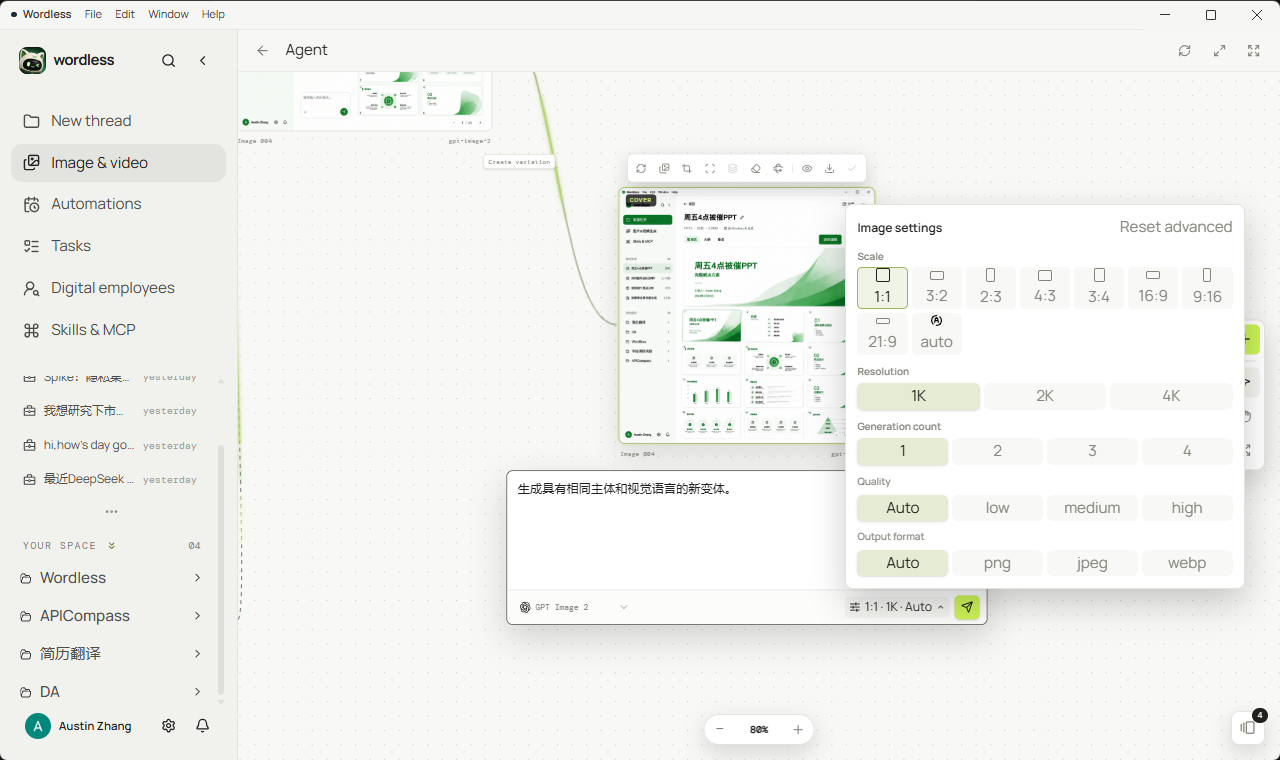
- Open Image settings and, for what the model supports, set Scale, Resolution, Generation count, Quality, and Output format. Use Reset advanced to clear extras.
- Send. The node shows GENERATING, then a finished image with its name and model id.
16:9 cover: an orange kitten sitting on a light bed, soft window light, shallow depth of field, no text, no watermark. Subject slightly below center, simple background, suitable as a product illustration.
The right rail Add menu offers Add image and Upload. Select clicks nodes; Pan moves the canvas. The bottom control is zoom.
Iterate on a node
Section titled “Iterate on a node”Select a finished image. The toolbar lists operations the current model supports. Edge labels name the operation, for example Create variation.
| Action | What it does |
|---|---|
| Generate image | Start another text-to-image pass from this node |
| Regenerate | Redraw with a new prompt while keeping subject and composition |
| Create variation | New candidate, same subject and visual language |
| Crop | Local crop; does not call the image model |
| Local edit | Regenerate only the painted area; needs mask support |
| Remove background | Cut out the subject; needs transparent-background support |
| Remove object | Erase a painted object and fill the hole; needs mask support |
| Multi-view | Generate the same subject from a camera angle |
The + on the right of a node is Generate with this image as reference. The toolbar also has Preview, Download (saves to the system Downloads folder), and Set as cover (COVER badge; used as the library thumbnail).
Create a new variation with the same subject and visual language. Shift the color to a green palette; keep layout and type hierarchy unchanged.
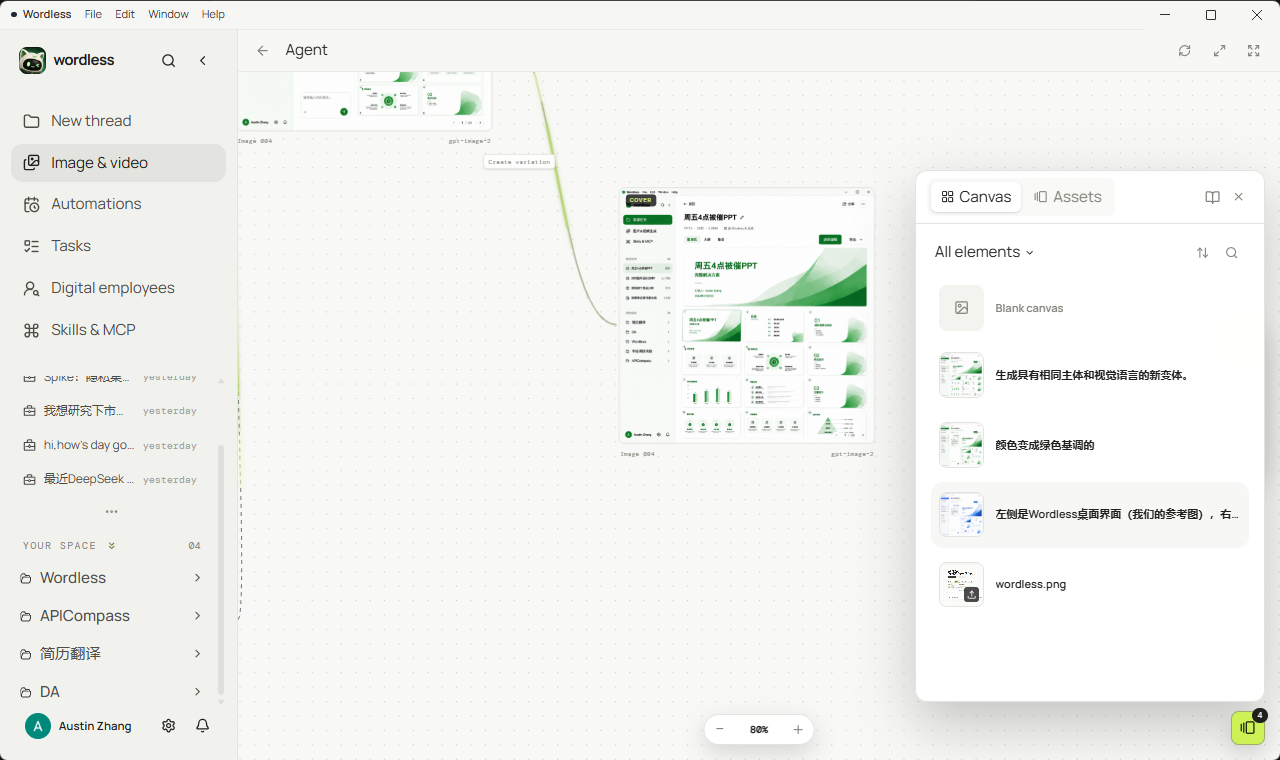
Open the dock with Assets. Switch Canvas and Assets, filter All elements / Generated / Uploads, and search names or prompts. An empty project shows Blank canvas.
If an action is disabled, the tooltip says to configure an image model first, or that no enabled model supports that action. Switch to a model that declares reference images, masks, or transparent backgrounds.
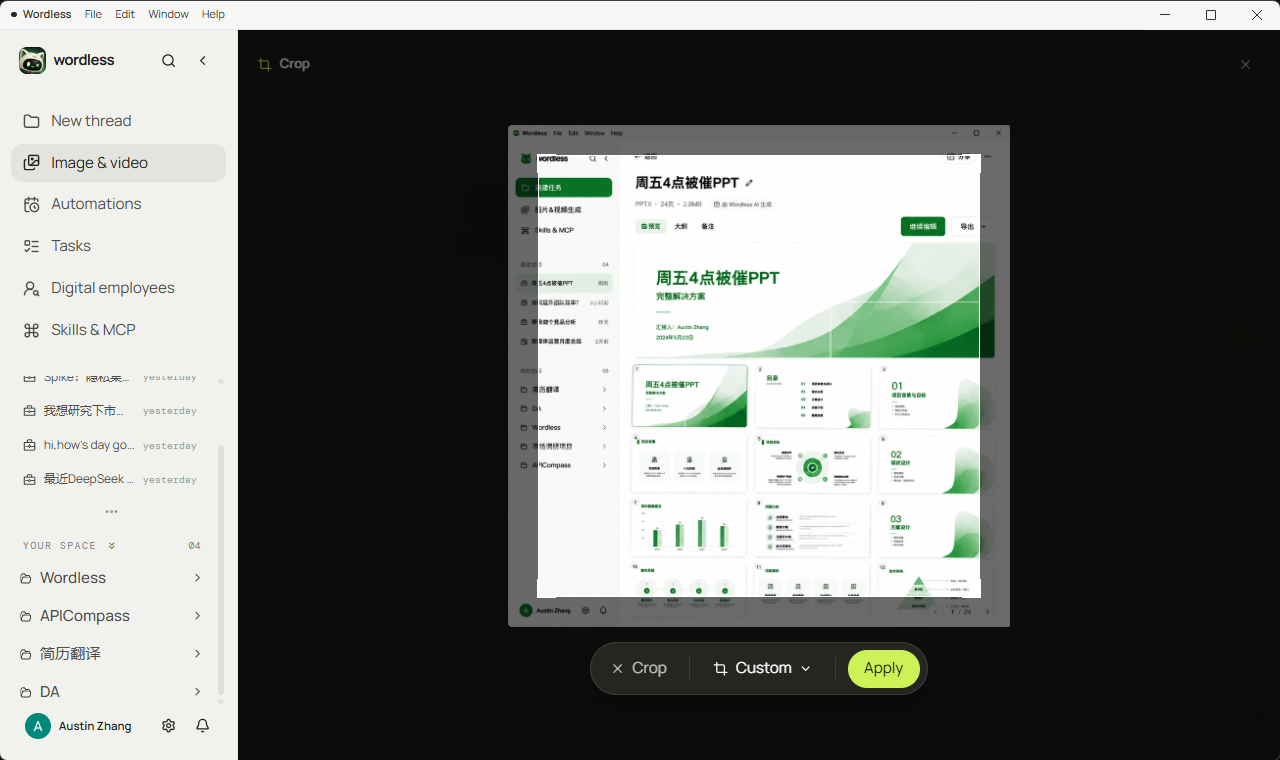
Crop runs locally. Drag the frame; ratio can be Original, Custom, or a fixed ratio such as 1:1 or 16:9. Apply writes a new node; cancel closes the editor.
Remove object and local edit
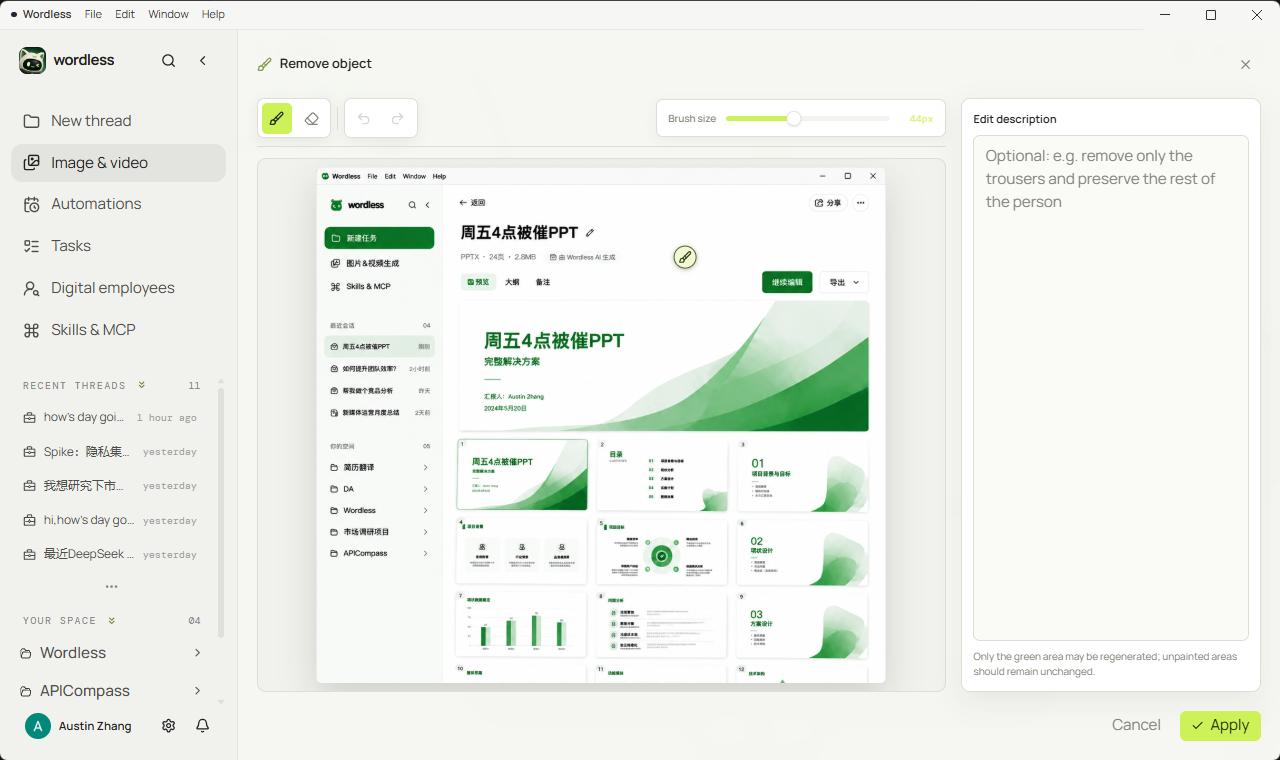
Section titled “Remove object and local edit”Remove object and Local edit share the paint UI. Brush adds to the mask, Eraser subtracts, Brush size sets the radius. Only the green area may be regenerated.
- Select an image, choose Remove object or Local edit, then a model that supports masks.
- Paint the target. Unpainted areas should stay unchanged.
- Optionally fill Edit description. For remove object you can write “remove only the trousers and preserve the rest of the person”.
- Click Apply. If the mask is empty, you are asked to paint the area first.
Multi-view
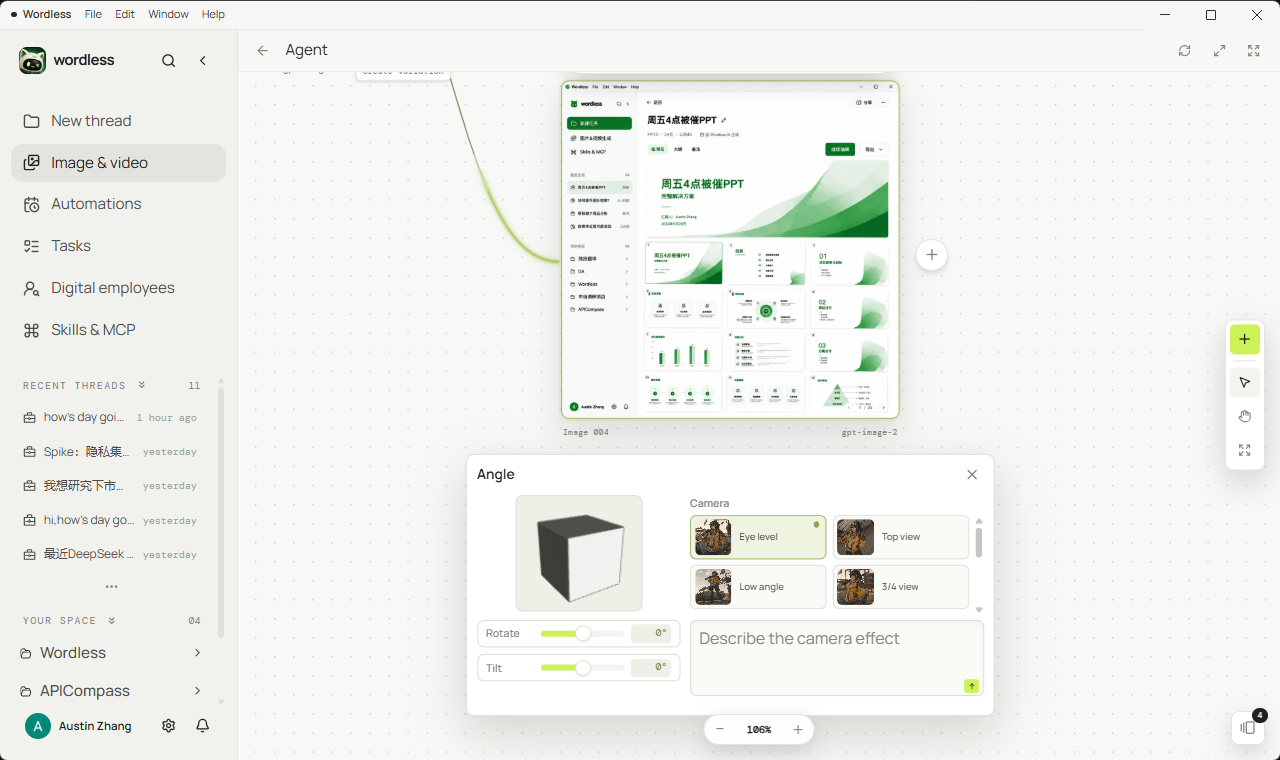
Section titled “Multi-view”Multi-view opens Angle: Rotate and Tilt on the left, Camera presets on the right (Eye level, Top view, Low angle, 3/4 view, and more). You can also describe the camera effect, then generate.
Common issues
Section titled “Common issues”- No model in the prompt box: no image model is enabled. Chat models and image models are configured separately. See Configure a model.
- Create variation or Remove object is disabled: the current model does not declare reference or mask support. Switch models, or only enable capabilities the vendor actually supports.
- Cannot find the canvas: it never appears in Recent threads. Return to the Image & video library and use Search projects.
- File still on the canvas after Download: Download copies to Downloads; it does not delete the node.
- Files gone after deleting the canvas: expected. Delete canvas removes images and generation history.
- Need video: Add video is currently disabled. Do not treat this canvas as a video timeline.