
Presentation
Create an editable, previewable, and visually verified .pptx. More importantly, avoid the download-open-upload loop: keep the deck in the right workspace, select a specific element, and ask the agent to change it in place.
Complete the design loop in one workspace
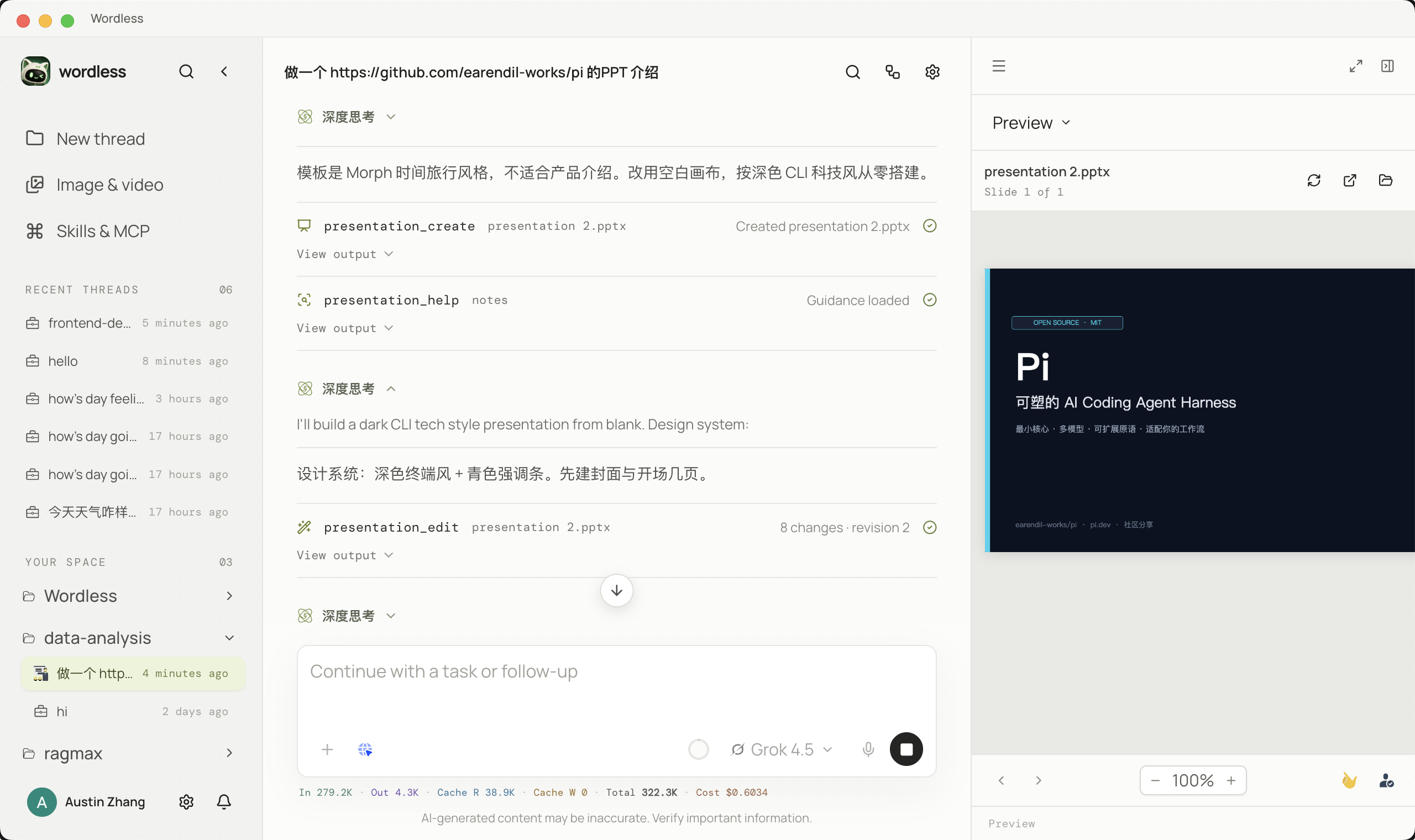
Section titled “Complete the design loop in one workspace”The Presentation panel is an active work surface, not a static final screenshot. Browse slides, adjust zoom, refresh the preview, select a slide element, and send that selection to Composer as structured context. After the agent applies a change, the same preview refreshes so you can immediately continue the next iteration.
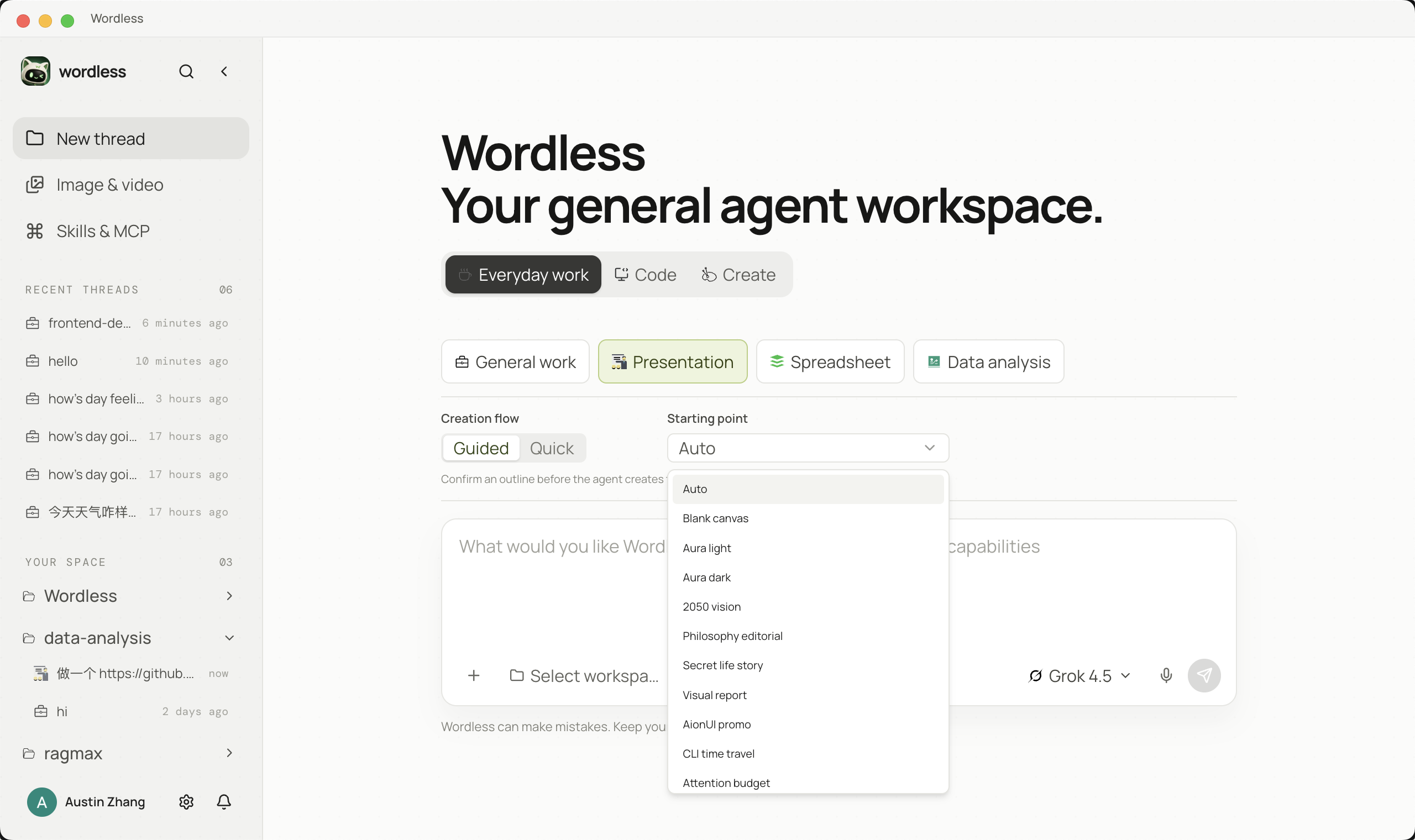
- Select Presentation, then choose a template and starting point in Guided or Quick mode.
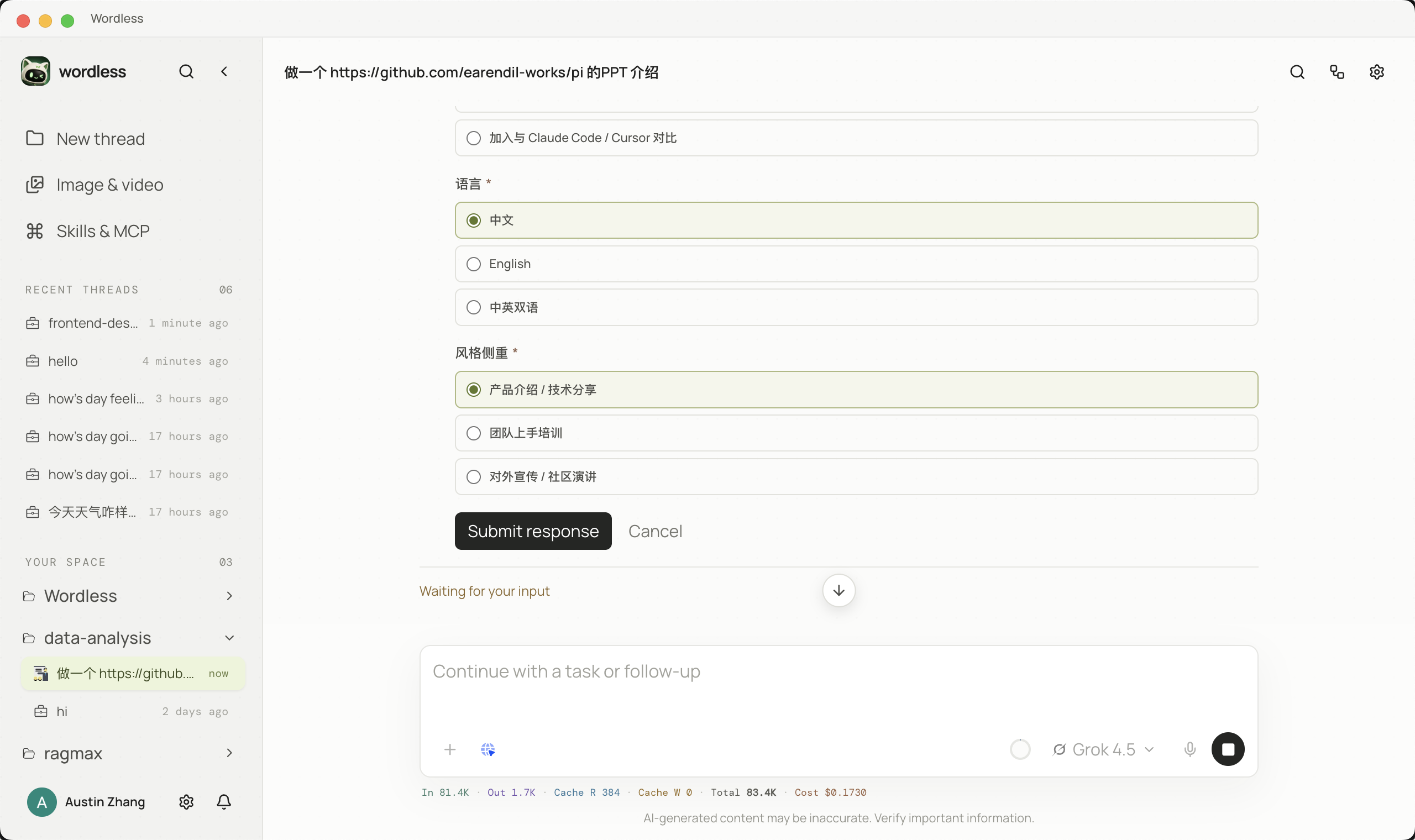
- Confirm the language, visual direction, audience, and slide count before generating the first revision.
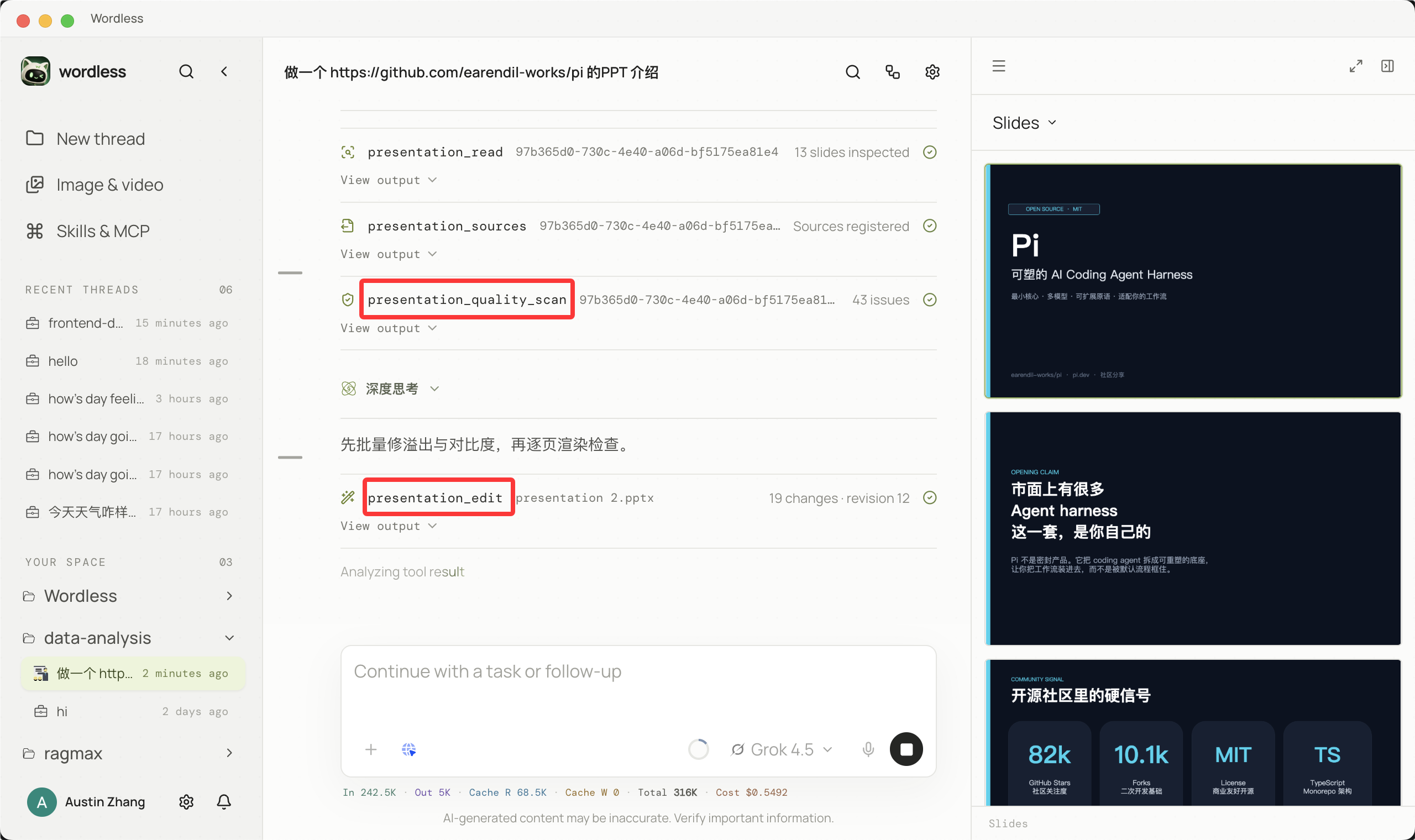
- Browse slides in the right preview and use zoom or refresh to inspect details.
- Enter selection mode, click the title, text box, or other element to edit, and confirm the selection.
- Choose Use selection. Composer receives structured information about the selected object, not merely text such as “the title on slide 3.”
- Describe the targeted change and state what must remain untouched.
- Wait for the tool to succeed. The preview refreshes in place without downloading or reopening the PPTX.
- Select the next element and continue; finish with Check presentation for overflow, occlusion, and contrast issues.
End-to-end production flow
Section titled “End-to-end production flow”- Reference the outline, data, and template with
@; specify the 16:9 ratio, typography, and output path. - Ask the agent to create slide structure and one conclusion per slide before applying elements in batches.
- On Tool Approval, verify that
parentandpathuse/slide[N]such as/slide[1], not/slides/1. - After each batch, wait for
presentation_renderand inspect direction, overflow, occlusion, and contrast in the right preview. - Use element selection for targeted repairs, then run Check presentation.
- Export and open the deck in PowerPoint or Keynote to verify font substitution, animation, and editability.
What is different in Wordless
Section titled “What is different in Wordless”Most “generate a deck” flows end at the download button. Wordless turns the preview into context for the next instruction. Structure, batched apply, element selection, immediate render, and human verification stay in one thread, so edits target a real slide object rather than asking the model to blindly revise the entire deck. Office engine source: iOfficeAI/OfficeCLI.
| Scenario | Action in Wordless | Verification |
|---|---|---|
| Deck from an outline | Build structure, then inspect every slide in place | One conclusion per slide |
| Adjust one title or shape | Select the object and send a scoped instruction | Other elements remain unchanged |
| Repair an existing PPTX | Select, modify, and immediately render the issue | Verify each change in the same workspace |
Common recovery paths
Section titled “Common recovery paths”add command requires type or from: provide a top-leveltypeor copy sourcefrom, not onlyprops.type.Path must start with /slide[N]: replace/slides/1with/slide[1].- Vertical preview text: inspect text-box dimensions, rotation, font, and wrapping before changing the layout.
Office engine unavailable: reinstall OfficeCLI for the current architecture and verify that its executable can run.